
- Companies
-
- Marketing
- Create Marketing Lists
- Send Email Campaigns
- Creating a simple Web Form
- Smart Lists
- reCAPTCHA for Web Forms
- Facebook Lead Ads
- About Web Forms
- Insta-Buy Web Forms
- Add or Remove Contacts/Companies from Lists
- Creating a Marketing List from Advanced Filters
- Editing existing List members
- Exporting Marketing Lists
- Filtering by Lists
Marketing with ‘Smart Lists’
You can quickly use ‘Smart Lists’ in CRM to:
- Sort and segment your customers by creating lists for highly tailored marketing, communications, follow-up, service and advice.
- Set list criteria, based on key data metrics, and effortlessly maintain the list with dynamic updates.
This is a simple way to have CRM automatically maintain Lists for you – just go to Marketing > Lists and click on New List.
- Give the List a name and relate it to either Contacts or Companies.
- Tick the Is Smart box.
- Next to the Filter field, click on the button to create a new Filter.
- You can then specify the criteria that records need to meet in order to qualify for the List, the same way that you would create a Filter anywhere else in CRM.
- Save & Close the record.
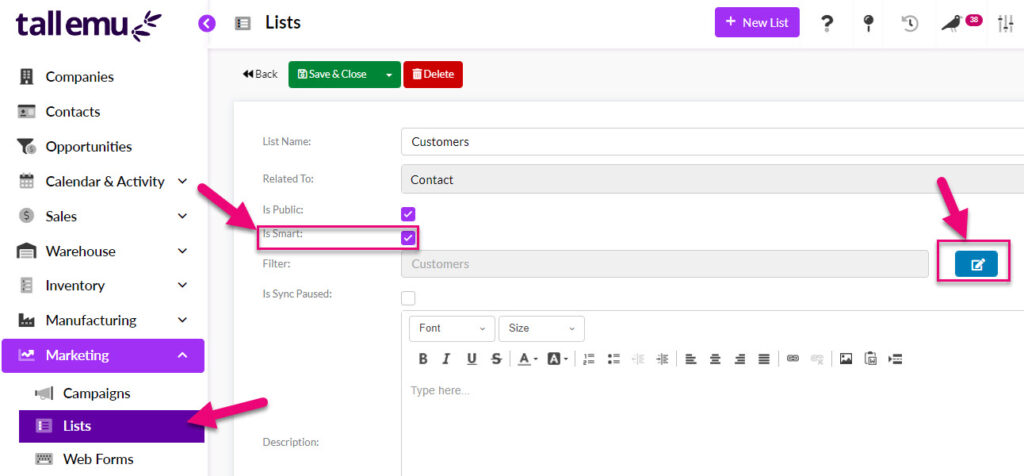
Creating a ‘Smart List’
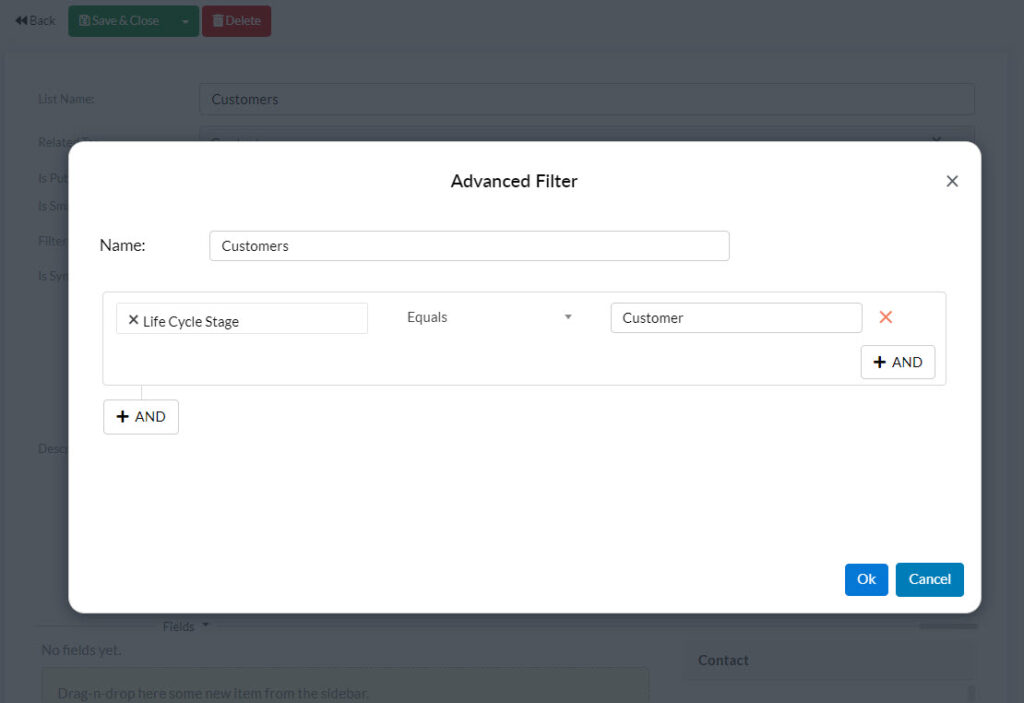
Setting the List conditions
When you have saved the record, click on the Update Data button – CRM will then go and perform a search to find all the records that meet your criteria and pull them through to the List.

If you have Mailchimp or Campaign Monitor integrated with CRM, you can schedule to push these Lists out to either service on a regular basis.
- Click on the Upload to campaign system button on the List.
- Ensure that you have set up a sync schedule for your EDM from Admin > Integrations.

Important note
The number of lists and contacts you are able to sync will depend on your Mailchimp/Campaign Monitor pricing plan; if you do not have a sufficient number of contacts and audiences available, your lists will not be able to sync out from CRM.
We also have a video on creating Lists in CRM:
Related articles