- Companies
-
- Sales
- Multi-currency for Sales
- Invoicing items that aren’t in stock
- Drop shipping workaround
- Managing your Quote pipeline
- Direct Debits
- Sending Statements
- Backorder Invoices
- Progressive revenue
- Subscriptions
- Bulk send Invoices
- Credit Notes
- Taking a Deposit
- Creating Invoices
- Create Freight Quotes
- Getting Started with Web Quotes
- Sales Orders
- Card Payments
- Payments
- Repeating Invoice Placeholders
- Creating Repeating Invoices
- Online Invoice Templates
- Online Sales Order Templates
- Set Up Web Quote Templates
- Quotes
- Quotes
Multi-currency for Sales
Before you can use multi-currency for sales in CRM, you need to ensure you have this feature enabled in your accounting system.
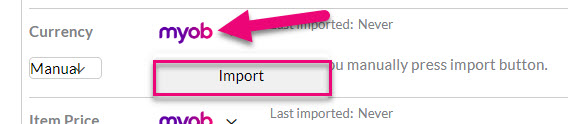
You should then bring through currencies from your accounting system into CRM from Admin > Integrations and select either MYOB or Xero settings. Then scroll down to Currency and click on the accounting system logo and select Import.
If you are looking for multi-currency purchasing, please see our page on Calculating Landed Costs.
Set up your overseas customers
Firstly, you will need to ensure your overseas customer records are set up correctly in CRM. To do this, open a Company or Contact record and ensure the following conditions are met:
- A Default Currency has been selected.
- Use Customer Tax Rate has been ticked and the Customer Tax Rate has been set to GST Free Exports (or an equivalent tax rate in your system that means GST won’t apply).
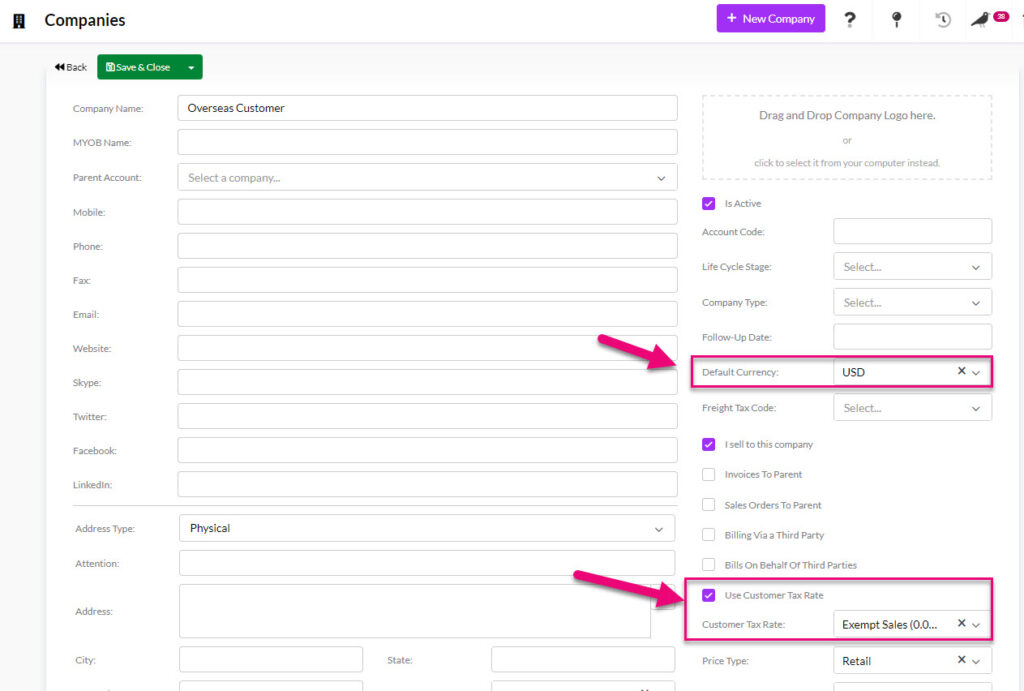
If you need to update the currency & tax rate in bulk for your customers, export and reimport is a quick way to do this.
Pricing for overseas customers
If you’d also like to apply different pricing to these customers, it can easily be done in CRM:
1. Set up a new Price Type to apply to customers with this guide.

Adding a new Price Type in Admin > Settings > Inventory > Price Types
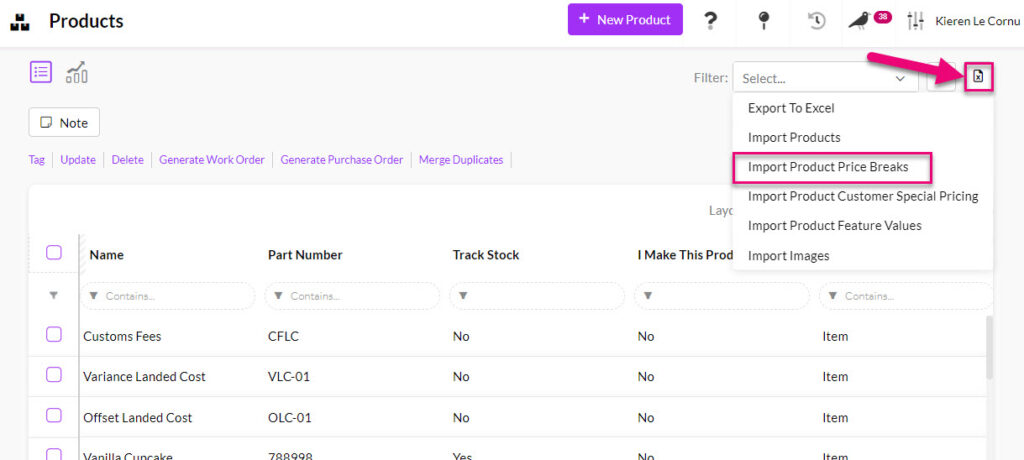
2. Add prices to your system using bulk import.
3. Set the Price Type field for your customers.
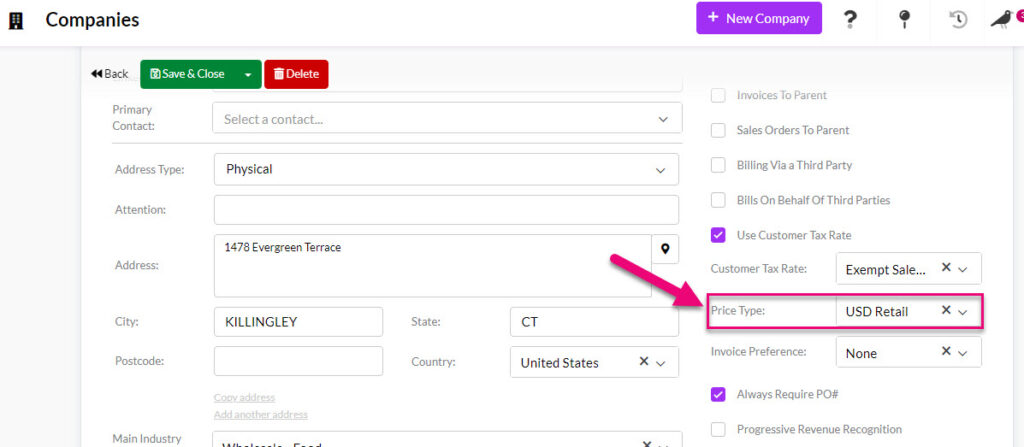
If you need to update the price type in bulk for your customers, export and reimport is a quick way to do this.
Create sales for your customers
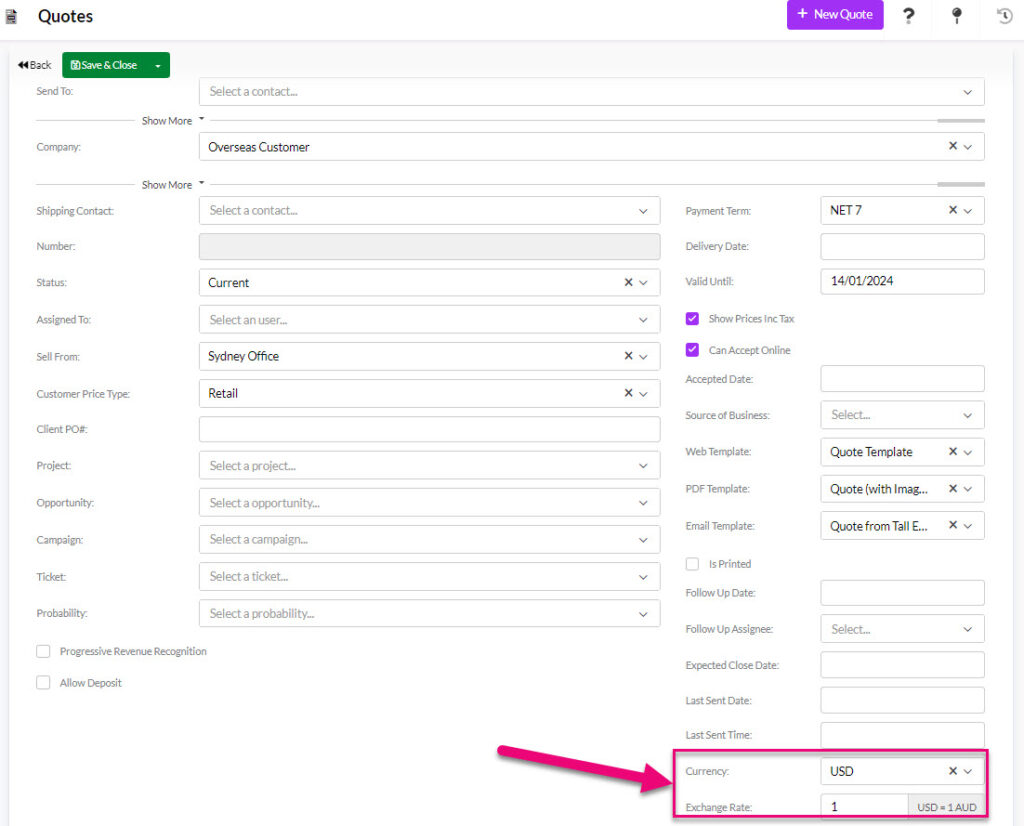
The choices you input on the customer record will automatically pull through to any Quotes, Sales Orders or Invoices that you produce for the customer. The following examples are from a Quote.
For each sale, you can then enter in the applicable Exchange Rate for the currency that has come through from the customer record.
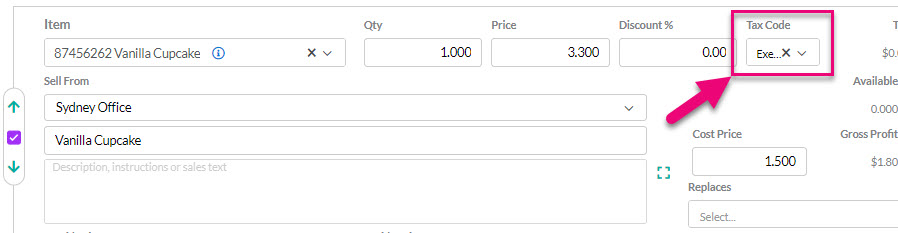
The tax rate from the customer record will also flow through to each item that is added.
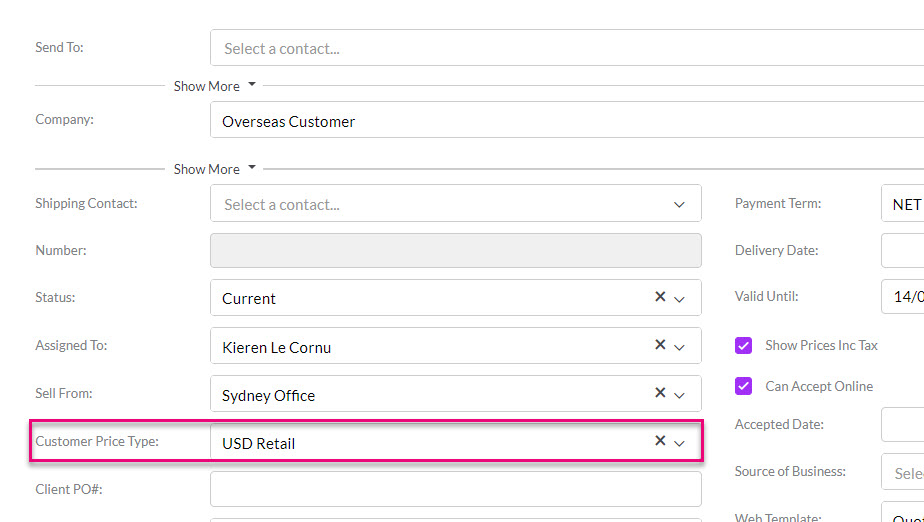
If you have set up a Price Type for your customer, this will also pull through so that the pricing you’ve set up will apply to items you add.
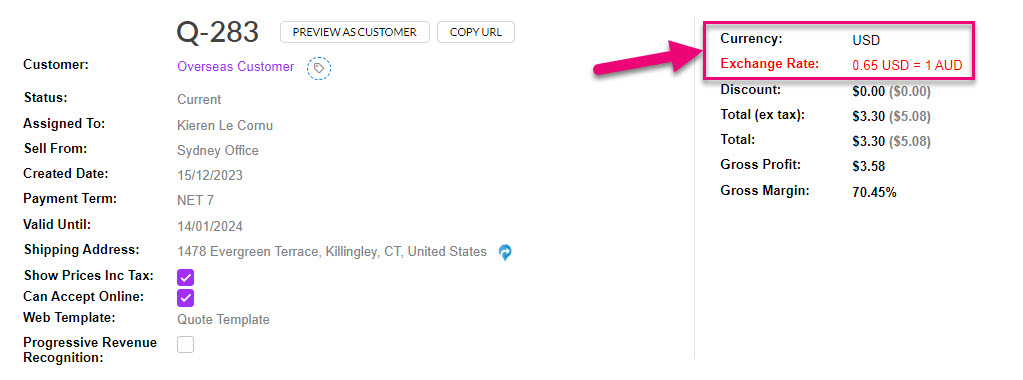
When you have saved the record, currency details will now be visible in the top right corner.
Viewing multi-currency details from List View
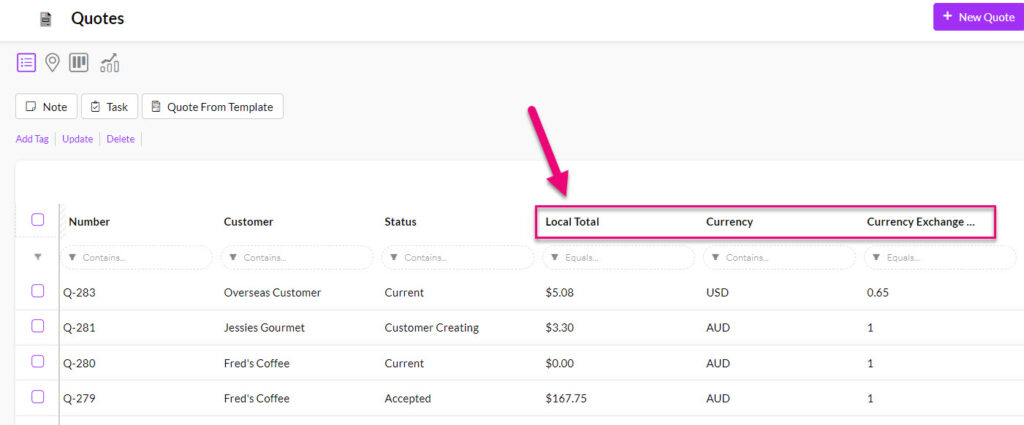
When using grid view in Quotes, Sales Orders and Invoices, you can add the following columns to your Layout so that multi-currency details are displayed:
- Local Total
- Currency
- Currency Exchange Rate
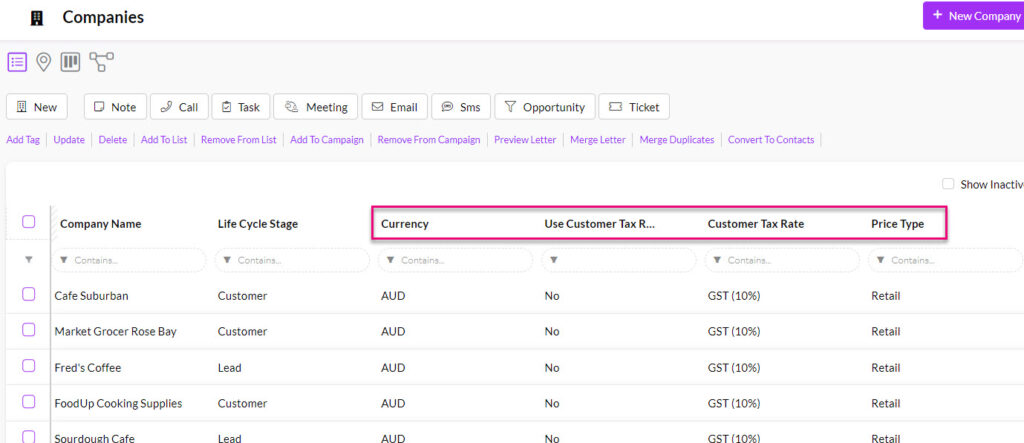
You can also do this in Companies or Contacts by adding the columns for Default Currency, Use Customer Tax Rate, Customer Tax Rate and Price Type.
Payments
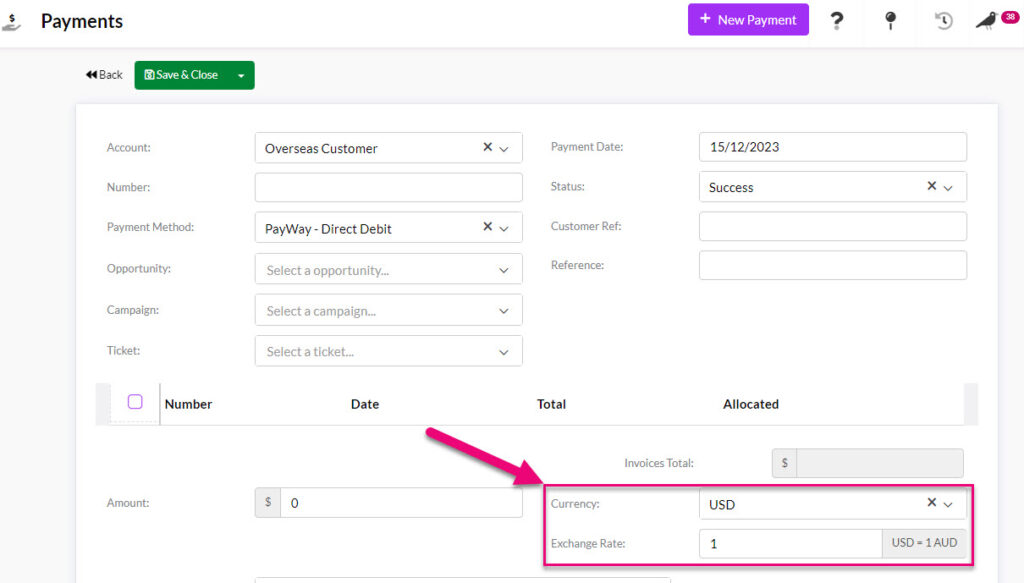
When creating a Payment against a foreign currency Invoice, these details are shown, and the Amount will be calculated in $AUD based on the Exchange Rate applied.