-
Companies
- Companies
- Parent-Child and Third-Party Relationships
- Add a Note to a Company
- Add a Task to a Company
- Find New Leads
- Merge Duplicates View
- Mandatory Purchase Order Numbers
- Record visibility
- Customising Company & Contact fields
- Customers & Suppliers
- Converting Companies & Contacts
- Creating Contacts and Companies inline
- Contacts
- Opportunities
- Calendar & Activities
- Companies
-
Sales
- Sales
- Multi-currency for Sales
- Invoicing items that aren’t in stock
- Drop shipping workaround
- Managing your Quote pipeline
- Direct Debits
- Sending Statements
- Backorder Invoices
- Progressive revenue
- Subscriptions
- Bulk send Invoices
- Credit Notes
- Taking a Deposit
- Creating Invoices
- Create Freight Quotes
- Getting Started with Web Quotes
- Sales Orders
- Card Payments
- Payments
- Repeating Invoice Placeholders
- Creating Repeating Invoices
- Online Invoice Templates
- Online Sales Order Templates
- Set Up Web Quote Templates
- Quotes
- Quotes
- Warehouse
-
Inventory
- Inventory
- Multi-currency for Purchasing
- Backorders
- Bay Locations
- Features
- Stock Tracking
- System Products
- Accounting details for Products
- Deactivating Products
- Products in Portal
- Suppliers
- Supplier Pricing
- Suppliers & Products
- Products
- Stock Transfers
- Barcodes
- Product Inventory Details
- Importing & exporting Product data
- Virtual Products
- Stock Adjustments
- Purchase Orders
- Enable or disable Stock-Tracking
- Training Products
- Units of Measure (UoM)
- Freight Products
- Working with Landed Costs
- Configuring Product Settings
- Stock Locations
- Stocktakes
- Product Batches
- Serial Numbers
- Different Price Types
- Purchase Orders
- Managing Stock
- Configurable Products
- Variable Products
- Time Billing
- Manufacturers and Suppliers
- FROM Location-based pricing
- TO Location-based pricing
- Requests For Quote
- Time Products
- Quantity-Based Price Breaks
- RFQ Web Templates
- PO Web Templates
- Location-based Price Breaks
- Customer-Specific Pricing
- Deleting Special Prices
- Manufacturing
-
Marketing
- Marketing
- Create Marketing Lists
- Send Email Campaigns
- Creating a simple Web Form
- Smart Lists
- reCAPTCHA for Web Forms
- Facebook Lead Ads
- About Web Forms
- Insta-Buy Web Forms
- Add or Remove Contacts/Companies from Lists
- Creating a Marketing List from Advanced Filters
- Editing existing List members
- Exporting Marketing Lists
- Filtering by Lists
- Operations
- Training
- Reporting
-
Admin
- Admin
- Account Options
- Pricing settings
- PDF and Email Template system preferences
- Locations
- Brand Customisation
- Product Categories
- Product Groups
- Enable Time Billing
- Customising Assets
- Custom Fields
- Delivery Resources
- Delivery Options
- Reporting Preferences
- Sales & purchase settings
- Calendar Settings
- Messaging settings
- Repeated Invoice frequency
- Company Settings
- Credit Settings
- Sales Regions
- Asset Settings
- Ticket settings
- Relationships
- Proposal-based Quotes
- Customising Training
- Prefix/Sequences settings (Record Numbering)
- Creating SMS Templates
- Invoice Settings
- Creating Email Templates
- Creating Letter Templates
- Using Letter Templates
- Using SMS Templates
- Using Email Templates
- Setting up Teams
- System security
- Users
- Activate a new User account
- Log into a User account
- Managing Connections
- Calculating Landed Costs
- Resources
- Payment Methods
- Payment Terms
- Couriers
- PDF Templates
- Service Reports
- Quote Form Templates
- System Quote Preferences
- Credit Control
- Setting up Teams
- Regional Settings
Production
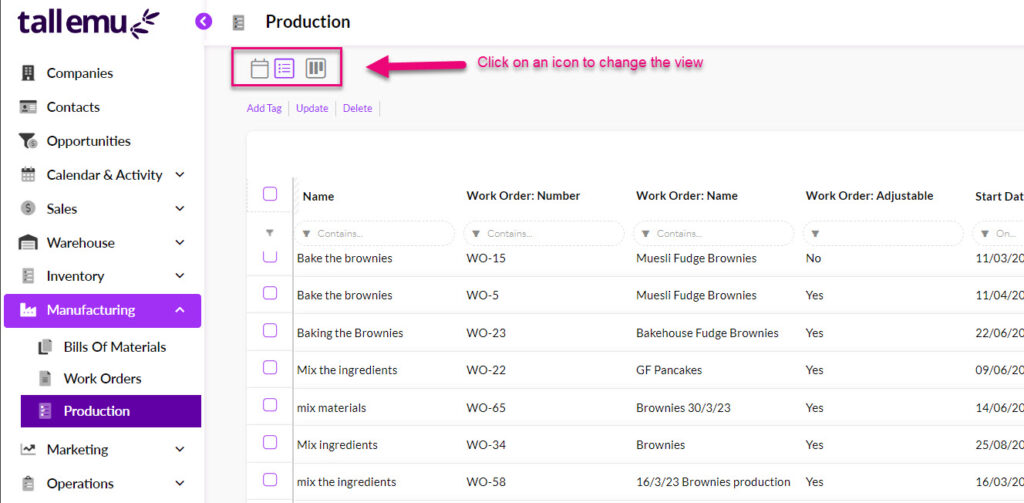
The Manufacturing > Production area allows you to view and manage your manufacturing process in 3 different views:
- Calendar
- List
- Kanban
Just click on an icon at the top of the page to switch to a new view.
What is “Production”?
When you set up a Bill Of Material, you specify the items that you’re going to use and create during a manufacturing process. At the same time, you can specify the steps that need to take place in that manufacturing process – these are Production Steps. They are optional.
The Production area displays all the Production Steps from your Work Orders so that you can see which steps are in the works, where production is up to and who is doing what.
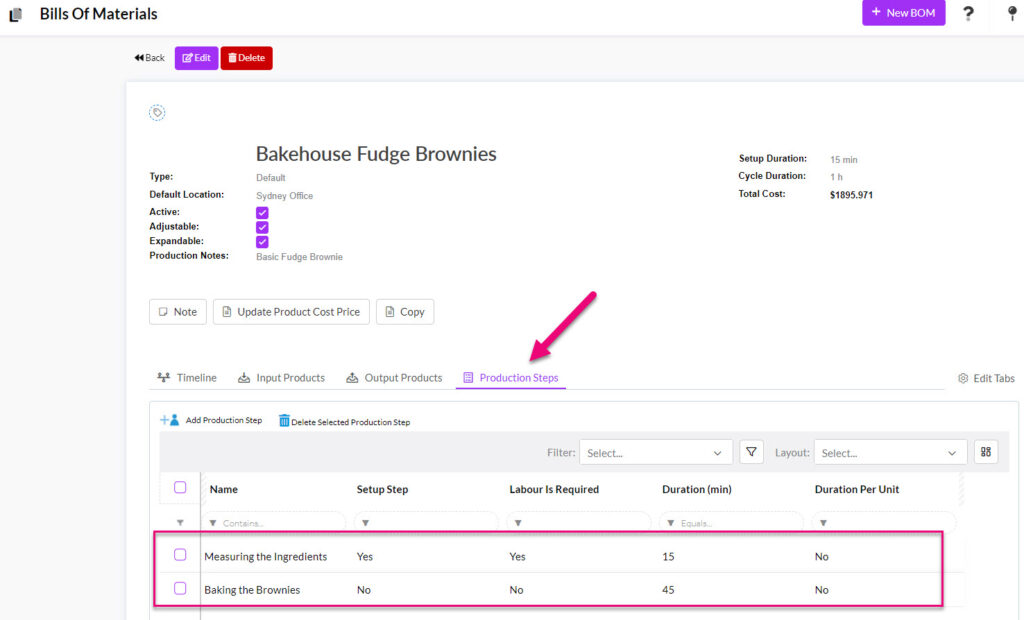
Production Steps on a BoM
When it comes time to manufacture an item, the Production Steps need to be scheduled in for the Work Order.

Production Steps on a Work Order
If you didn’t have any Production Steps set up in your BoM, you can manually create steps and then link them to an existing Work Order.
To create a step, just click on the New Production button.

A new form will then allow you to input the step details and select a Work Order to apply it to. When you are done, click Save & Close.

Creating a new Production Step
Calendar View
Any steps that haven’t been assigned yet will show on the Unassigned Resources calendar, from which you can drag and drop calendar entries over to another calendar to schedule production with a User or Resource. If you haven’t set up any Resources for production yet, you’ll want to learn more about how they work here.

You can select which calendars are visible by clicking on Calendars to show a list of Users and Resources to select from – then use the checkboxes to select which calendars you want to display.
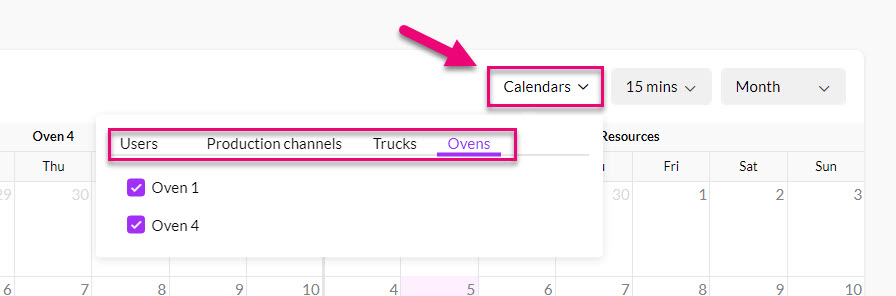
And also change the time interval shown on the calendar.
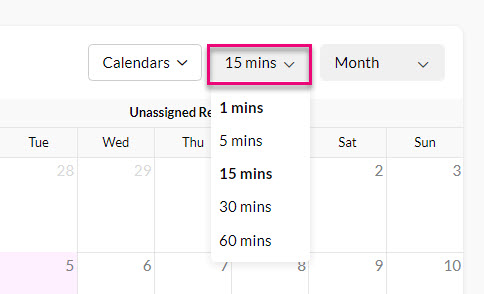
As well as the period of time shown on the calendar.
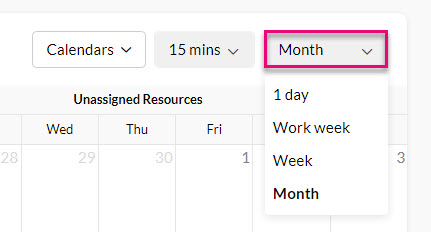
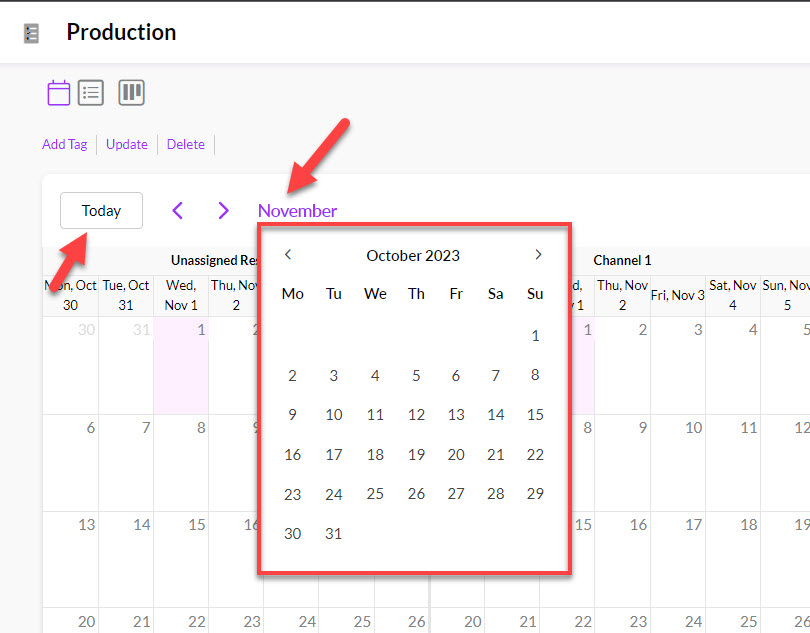
Click on the name of the month to access the small calendar. You can also quickly return the calendar to today’s date by pressing on the Today button.
List View
Shows you a list of all the steps in your system. You can then use Filters and Layouts to sort the data into meaningful chunks.
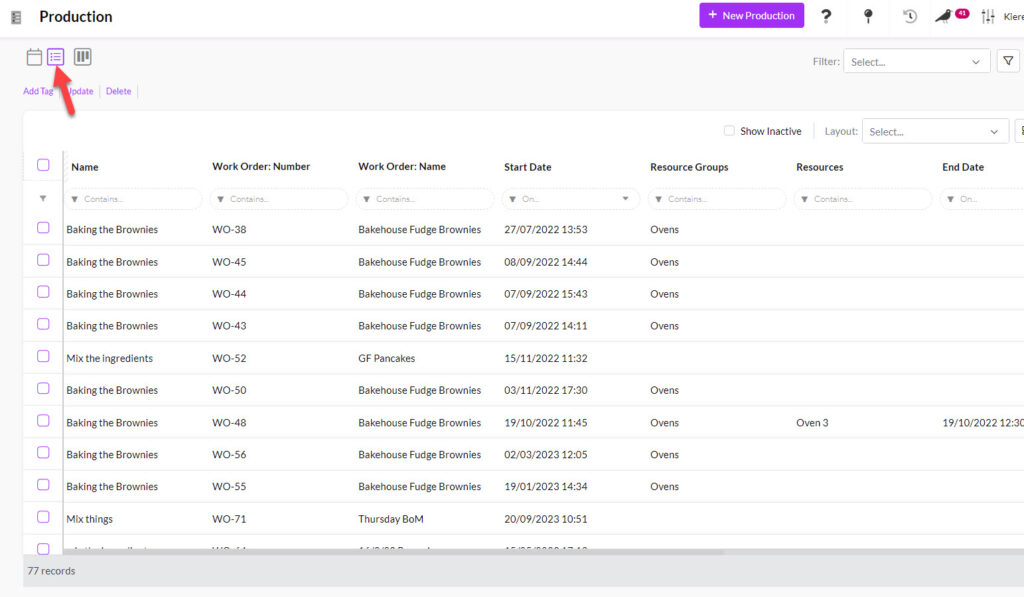
Production in List View
Kanban View
According to the Stages you have set up for your Work Orders, you’ll be able to view all your steps according to the Stage they are up to here.

Production in Kanban View
You can tailor the view by expanding or collapsing certain Stages, or quickly filter the records by Stage or who they are Assigned To.
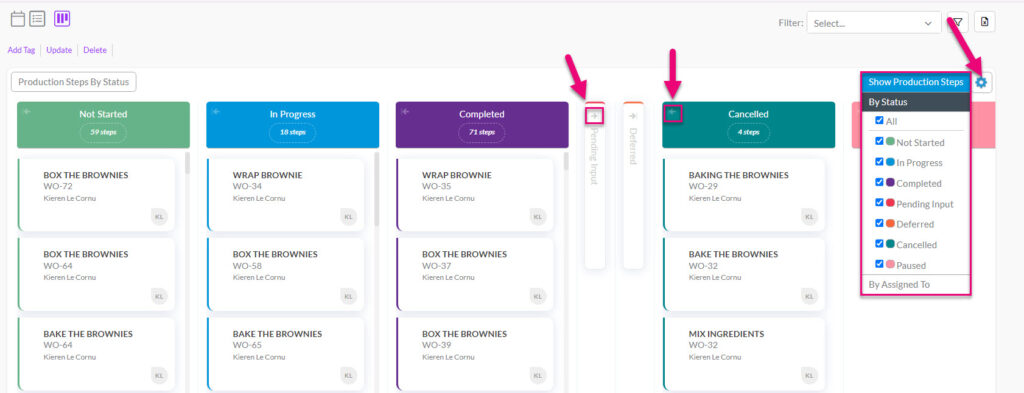
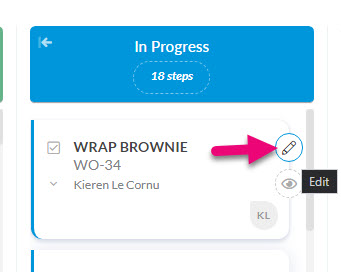
You can also quickly open a step by hovering over it, then clicking on the pencil icon – this opens the record.