
- Companies
-
- Admin
- Account Options
- Pricing settings
- PDF and Email Template system preferences
- Locations
- Brand Customisation
- Product Categories
- Product Groups
- Enable Time Billing
- Customising Assets
- Custom Fields
- Delivery Resources
- Delivery Options
- Reporting Preferences
- Sales & purchase settings
- Calendar Settings
- Messaging settings
- Repeated Invoice frequency
- Company Settings
- Credit Settings
- Sales Regions
- Asset Settings
- Ticket settings
- Relationships
- Proposal-based Quotes
- Customising Training
- Prefix/Sequences settings (Record Numbering)
- Creating SMS Templates
- Invoice Settings
- Creating Email Templates
- Creating Letter Templates
- Using Letter Templates
- Using SMS Templates
- Using Email Templates
- Setting up Teams
- System security
- Users
- Activate a new User account
- Log into a User account
- Managing Connections
- Calculating Landed Costs
- Resources
- Payment Methods
- Payment Terms
- Couriers
- PDF Templates
- Service Reports
- Quote Form Templates
- System Quote Preferences
- Credit Control
- Setting up Teams
- Regional Settings
Prefix/Sequences settings (Record Numbering)
Record Numbers
Every record in CRM has a prefix, followed by a number; these form a Record Number e.g.
- The prefix is the letter e.g. “Q” for Quote or “I” for Invoice.
- The number is what comes follows the prefix to identify the record e.g. “Q-3” for Quote or “I-150” for Invoice.
The numbering sequence for each record type in CRM is independent.
By default, every record in CRM starts from number 1. The number then automatically increases as each subsequent record is created. For example:
- My database has Q-1, S-1 and I-1 as the starting identifiers for Quotes, Sales Orders and Invoices respectively.
- I then create 6 new Quotes – my record number increases to Q-6.
- 3 of these Quotes are then converted to Sales Orders – my record number here now increases to S-3.
- 2 of these Sales Orders are then invoiced – my Invoice record number increases to I-2.
Customise your Record Numbers
- From Admin > General > Prefix/Sequences settings you can edit the prefix and starting sequence number to create a new Record Number.

In the following example, I have implemented the following as the starting Record Numbers:
- Q-500 for Quotes
- SO-400 for Sales Orders
- INV-250 for Invoices
- PO-200 for Purchase Orders

- When you are done, remember to click on the green Save button at the top of the page to apply your changes.

- The column for Record Number can be added to your List View as a column.
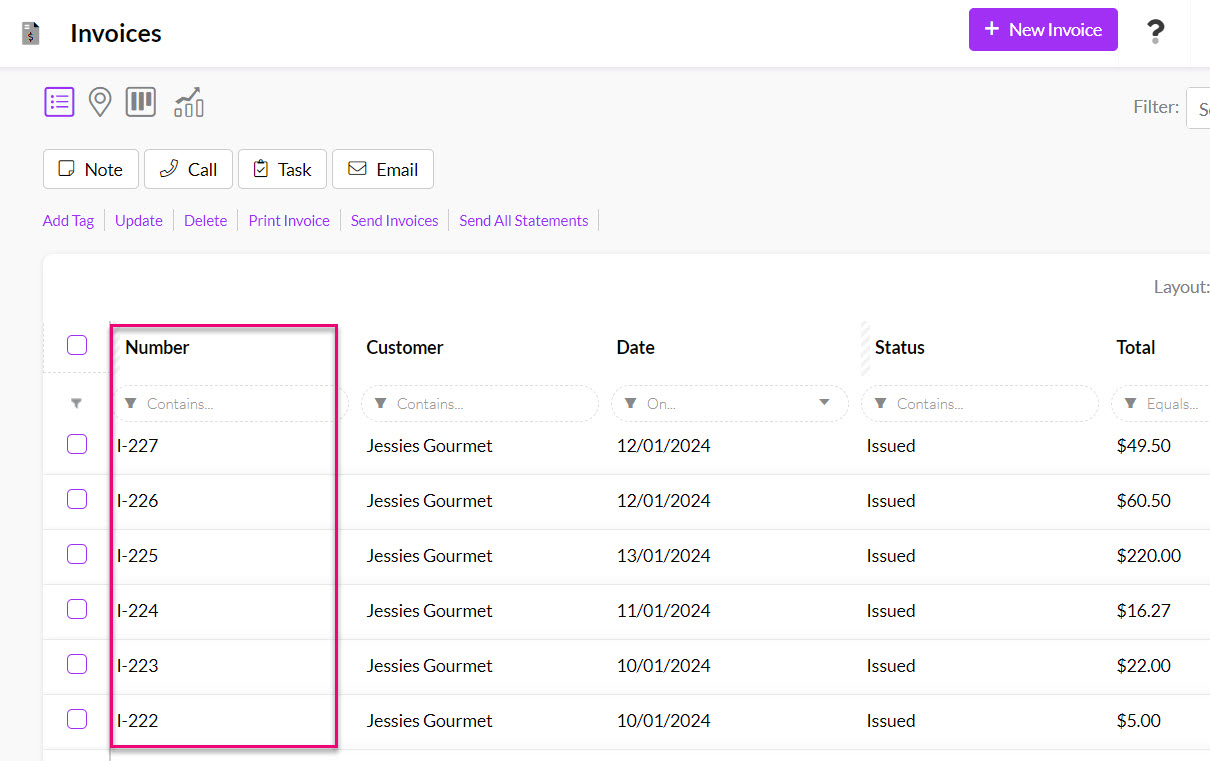
- The Record Number will also be visible on records.

See also:
Editing Record Numbers
As well as being able to customise your Record Numbers at a system level, you can also edit them while you are working with the record.
- This feature is only available for sale and purchase records in CRM.
- You must have enabled the option/s to edit these numbers in Admin > Settings > Sales and Purchase Settings.
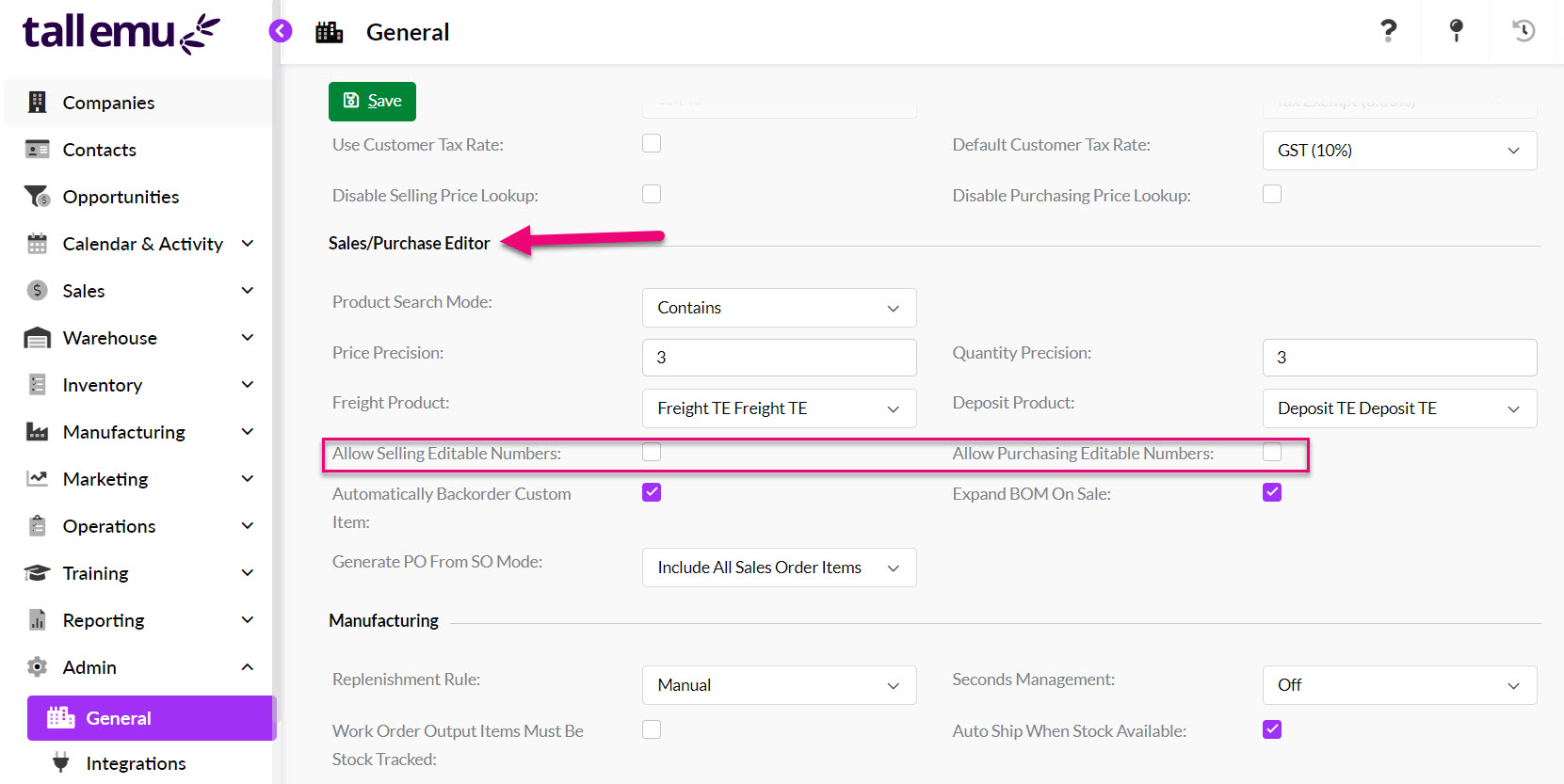
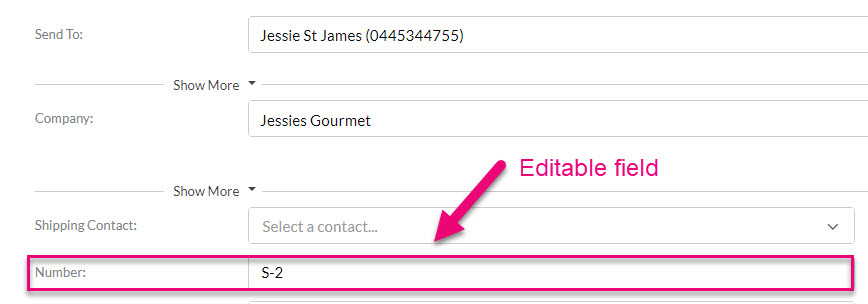
- The Number field on the chosen records can then be edited, rather than being greyed out.
See also:
Other record identifiers
Identifier
Every record in CRM also has its own system generated identifier that is numerical.
This number isn’t visible on records; you need to add the column for Identifier to your List View in order to reveal it.
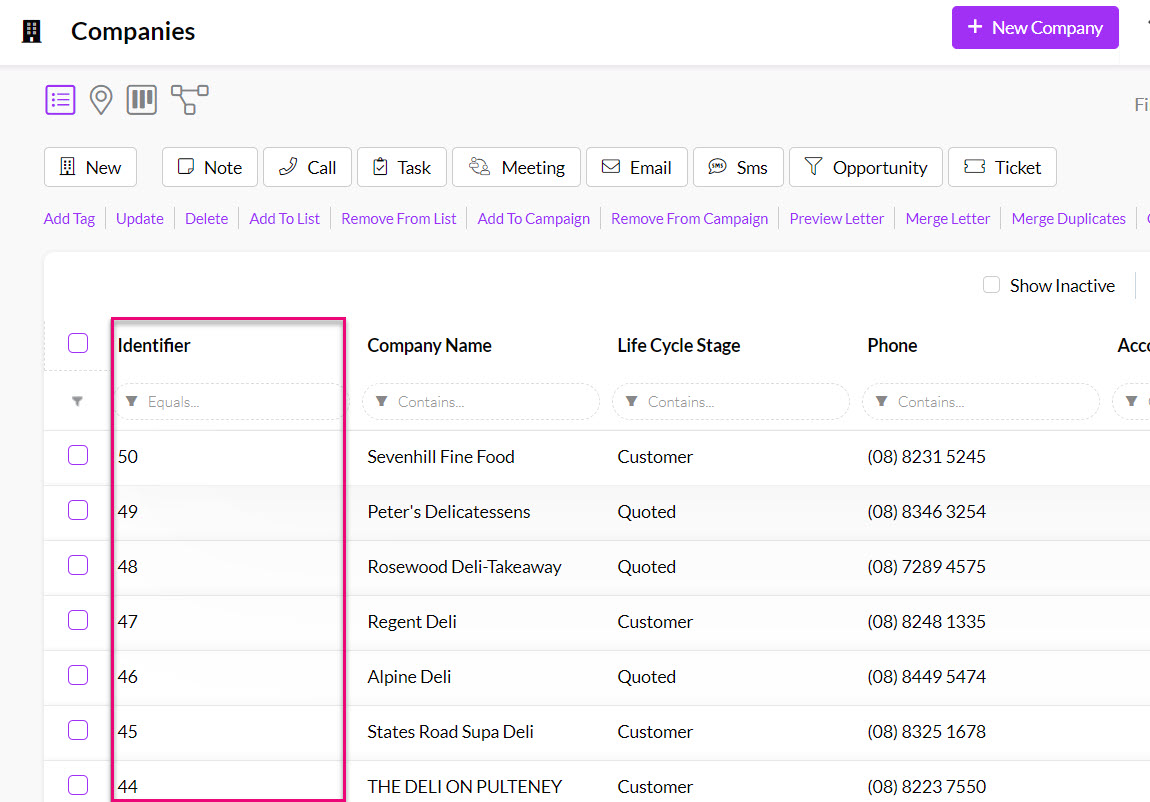
Identifier column in Companies
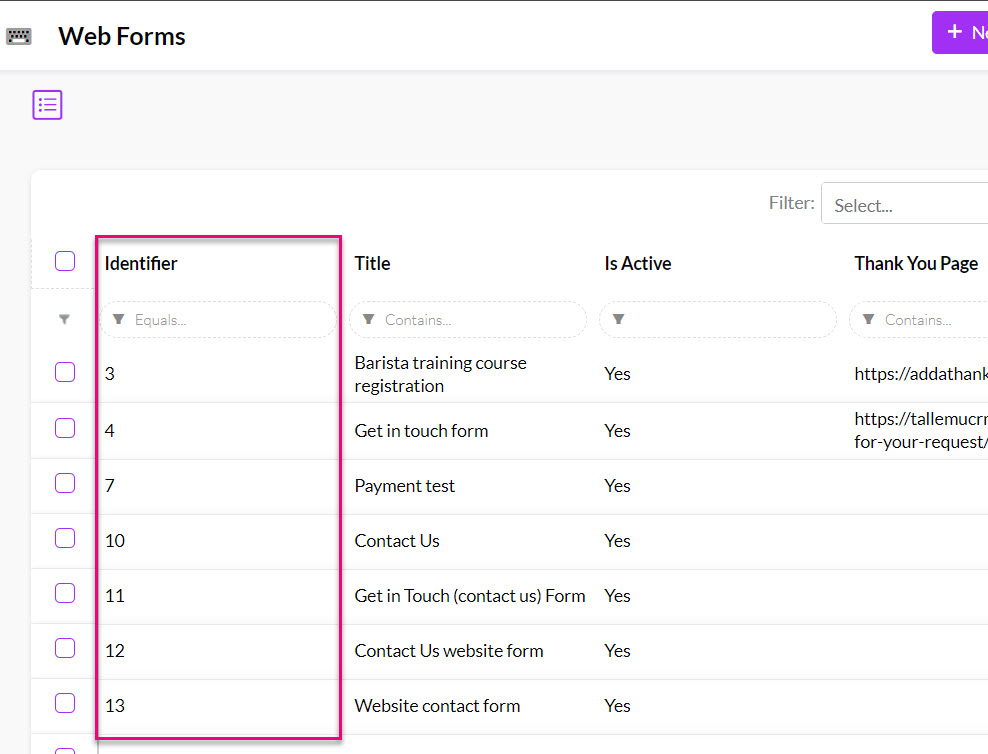
Identifier column in Web Forms
This number cannot be edited or customised.
See also:
Activity Identifiers
Every record in CRM also has its own system generated identifier that is numerical. Activities also get a 2nd identifier called the Activity Identifier, which identifies the record within just the Activity records in CRM.
If you think of it this way:
- The Identifier gives the record a reference within CRM.
- The Activity Identifier gives the record a reference within the pool of Activities.
This number isn’t visible on records; you need to add the column for Identifier and Activity Identifier to your List View in order to reveal it.

This number cannot be edited or customised.
See also:
Accounting Code
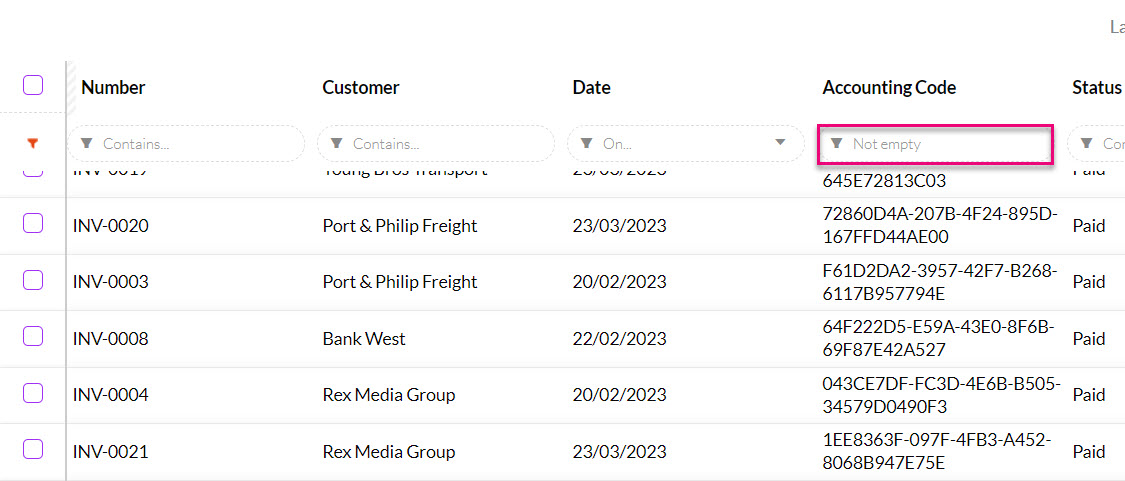
If your database is integrated with your accounting system, every record that is synced between your systems has its own unique identifier called Accounting Code.
This code isn’t visible on records; you need to add the column for Accounting Code to your List View in order to reveal it.

This is a quick way to see which records in CRM are synced with your accounting system:
- If the Accounting Code field is empty, the record is not synced.

- If the Accounting Code field has a value, the record is synced.
This number cannot be edited or customised.
See also:
- List View
- Adding & removing columns
- Filtering records
- MYOB data sync settings
- Xero data sync settings
- Accounting details for Products