
Universal Freight Hub
Universal Freight Hub is Tall Emu CRM’s central connection point for freight providers. It replaces the old MachShip-only integration with a single freight layer that can connect CRM to direct carriers, multi-carrier platforms and selected 3PL partners.
Existing MachShip customer? MachShip is still supported. It is now connected as a provider inside Universal Freight Hub using your MachShip API token.
You need an account and valid credentials with each carrier or shipping platform you want to use. Your normal carrier/platform charges and contracted freight rates still apply.
What Universal Freight Hub does
- Requests live freight quotes using the rates available to your carrier or shipping-platform account.
- Compares rates from multiple connected providers when they are enabled for multi-provider quoting.
- Creates/books consignments from CRM.
- Writes consignment/connote details and freight pricing back to the Outbound Shipment.
- Retrieves and prints carrier labels.
- Tracks consignments.
- Creates manifests, books pickups or cancels consignments where the provider supports those functions.
- Synchronises courier/service information into CRM where the provider exposes catalogue data.
- Connects selected 3PL partners through a separate 3PL area.
Not every provider supports every function. Freight Hub shows the capabilities available for each provider.
How to connect
1. Open Freight Hub
- Go to Admin > Integrations.
- Open Available Integrations.
- Select the Freight filter.
- Find Freight Hub and click Settings.
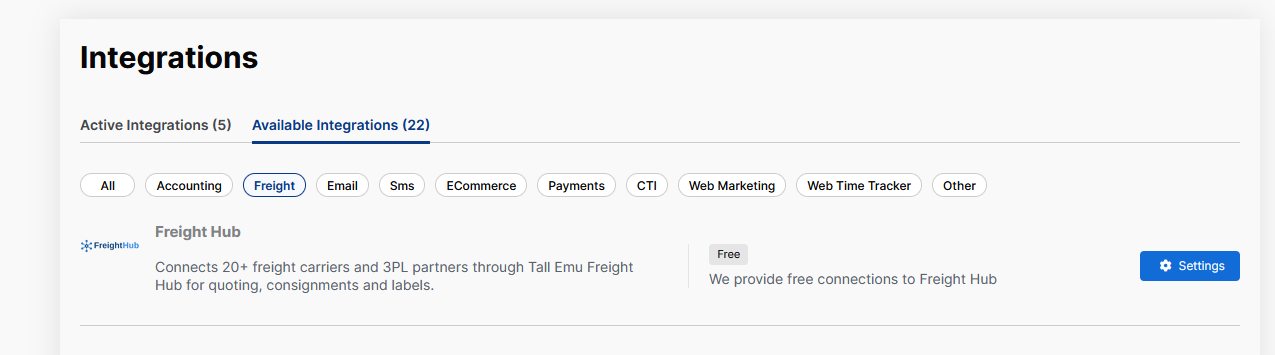
Freight Hub in Admin > Integrations
The Freight Hub integration is shown in CRM as a free connection. You still need your own account with the freight provider or platform you connect.
2. Choose a provider
Freight Hub separates connections into:
- Freight – direct carriers and multi-carrier shipping platforms.
- 3PL – warehouse/fulfilment partners, where available.
Providers are shown as either:
- Available – you can connect them yourself.
- Contact support – the connector is in limited release and Tall Emu Support must enable it for your CRM before you can self-activate it.
3. Enter provider credentials
Select the provider and open its configuration. The fields are provider-specific. The currently self-service providers ask for the following main credentials:
| Provider | Credentials |
|---|---|
| MachShip | API Token |
| Australia Post eParcel | Client ID; Client Secret; Charge Account |
| iCONSIGNIT | URL; API Token |
| Big Post | API Token; Environment |
| Australia Post My Business | API Key; API Key Password; Partner ID; Merchant Token; Environment (OAuth Client ID may also be shown) |
| StarTrack | API Key; API Password; Account Number; Environment |
| Australia Post (v1) | API Key; API Password; Account Number; Environment |
| Shippit | API Key; Environment |
| Aramex | Client ID; Client Secret |
Use the values issued by the carrier/platform. The fields displayed in Freight Hub are the source of truth because provider credential requirements can change.
4. Set connection behaviour
- Enabled – leave this on if the provider should be active.
- Include in multi-provider quotes – leave this on if the provider should be included when CRM shops for rates across connected providers.
5. Connect and test
- Click Connect Provider.
- Open Test Connection.
- Run Ping / Authenticate to verify the saved credentials.
- Where offered, also test Get Carriers and Package Types.
A successful connection/test can also synchronise the provider’s courier and service catalogue into CRM where the provider supplies catalogue data. Connected providers appear in the Connected section, where you can manage or disconnect them.
Existing MachShip customers
MachShip itself has not disappeared. The change is that it is no longer the one dedicated freight integration in CRM.
- Open Freight Hub > Freight.
- Choose MachShip.
- Enter your API Token. In MachShip this is generated under Settings > API Users.
- Connect the provider and run Ping / Authenticate.
How to use Universal Freight Hub
Get a freight quote
The existing CRM freight-quote workflow remains the same; Freight Hub changes where the rates come from.
From Sales > Freight Quotes
- Go to Sales > Freight Quotes and click New Quote.
- Enter the pickup/origin address, delivery/destination address and the items/packages being shipped.
- Click Get Prices.
- CRM requests rates from connected, quoting-capable Freight Hub providers that are enabled for quoting.
- Review the returned services and prices.
- Choose the service you want and click Select This Service.
- CRM creates the Freight Quote record.
From a Quote or Sales Order
- Open the Quote or Sales Order.
- Use Add Item > Freight.
- Enter the origin, destination and items/packages.
- Click Get Prices.
- Select the preferred freight service.
- The freight quote is added to the sale as a freight line and a linked Freight Quote record is created.
Rates are based on the account and services you have with the connected carrier/platform.
Create a consignment from an Outbound Shipment
- Open the Outbound Shipment.
- Check the pickup and delivery addresses.
- Check the items and Freight Items are correct.
- Confirm the courier/service selected for the shipment.
- Click Create Consignment.
- Freight Hub sends the booking to the selected provider.
- When successful, CRM records the consignment/connote details and freight pricing on the shipment.
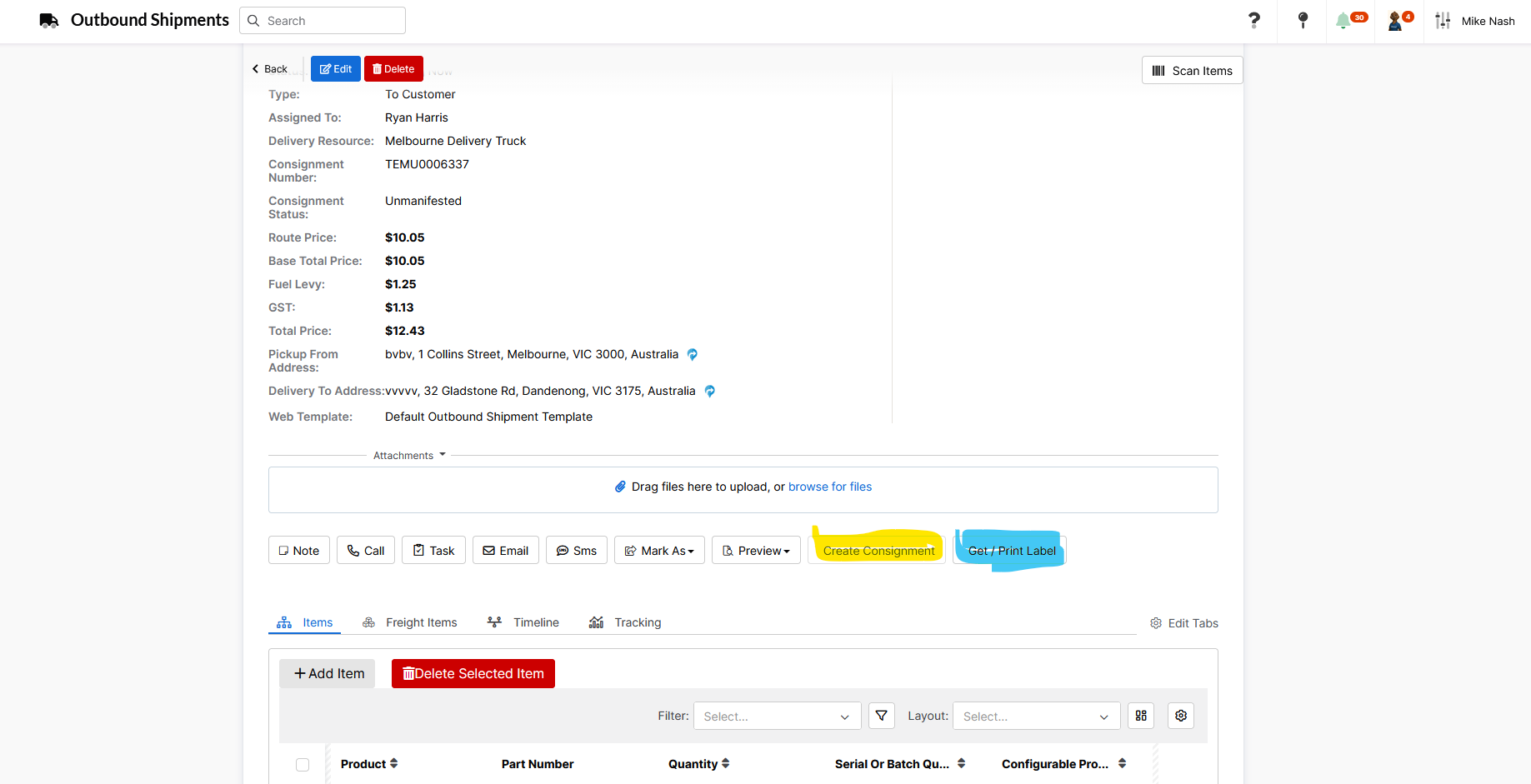
Create Consignment and Get / Print Label on an Outbound Shipment
Before trying to create another consignment, check whether a consignment number has already been returned for the shipment.
Get or reprint a label
- Open the booked Outbound Shipment.
- Click Get / Print Label.
- CRM retrieves the carrier label for printing.
If the consignment already exists, use the label action to retrieve/reprint the label rather than creating a second consignment.
Tracking, manifests, pickup and cancellation
- Tracking – use the shipment’s tracking information/tab where available.
- Manifest – available only for providers that support electronic manifests.
- Pickup booking – available only for providers that expose a pickup function.
- Cancellation – available only for providers that support cancellation through their API.
Supported carriers and platforms
There are two kinds of freight connections:
- Direct carrier – CRM connects directly to that carrier.
- Multi-carrier platform – CRM connects to a freight platform that may expose several underlying carriers. The exact carriers/services available depend on your account with that platform.
Available for self-service connection
| Provider | Type | Supported functions |
|---|---|---|
| MachShip | Multi-carrier | Quotes, Booking, Labels, Tracking |
| Australia Post eParcel | Direct carrier | Quotes, Booking, Labels, Manifests, Tracking, Cancellation |
| iCONSIGNIT | Multi-carrier | Quotes, Booking, Labels, Tracking, Manifests |
| Big Post | Direct carrier | Quotes, Booking, Tracking |
| Australia Post My Business | Direct carrier | Quotes, Booking, Labels, Tracking |
| StarTrack | Direct carrier | Quotes, Booking, Labels, Manifests, Tracking, Cancellation |
| Australia Post (v1) | Direct carrier | Quotes, Booking, Labels, Manifests, Tracking, Cancellation |
| Shippit | Multi-carrier | Quotes, Booking, Labels, Manifests, Tracking |
| Aramex | Direct carrier | Quotes, Booking, Labels, Tracking |
Contact Support / limited release
These connectors are present in the current Freight Hub build but are not generally self-service. Their card is shown as Contact support until Tall Emu enables the provider for your CRM.
| Provider | Type | Supported functions | Notes |
|---|---|---|---|
| ShipStation | Multi-carrier | Quotes, Booking, Labels, Tracking | — |
| TNT (FedEx) | Direct carrier | Quotes | Quote-only in the current connector. |
| Zoom2u | Direct carrier | Quotes, Booking, Tracking, Cancellation | — |
| Team Global Express | Direct carrier | Quotes, Booking, Labels, Manifests, Tracking, Pickup booking | — |
| Northline | Direct carrier | Quotes, Booking, Labels, Tracking, Cancellation | — |
| Xpress Freight Management | Direct carrier | Quotes, Booking, Labels, Tracking | — |
| Transdirect | Multi-carrier | Quotes, Booking, Labels, Tracking | Underlying carriers depend on your Transdirect account. |
| Mainfreight | Direct carrier | Quotes, Booking, Labels | Current rate API support is NZ-only; booking/labels support AU/NZ domestic road. |
| Border Express | Direct carrier | Quotes, Booking, Labels, Tracking | — |
| NZ Couriers | Direct carrier | Quotes, Booking, Labels, Tracking, Pickup booking | Connected through GoSweetSpot credentials. |
| Post Haste | Direct carrier | Quotes, Booking, Labels, Tracking, Pickup booking | Connected through GoSweetSpot credentials. |
| Castle Parcels | Direct carrier | Quotes, Booking, Labels, Tracking, Pickup booking | Connected through GoSweetSpot credentials. |
| NOW Couriers | Direct carrier | Quotes, Booking, Labels, Tracking, Pickup booking | Connected through GoSweetSpot credentials. |
| NZ Post | Direct carrier | Quotes, Booking, Labels, Tracking, Pickup booking | — |
| Starshipit | Multi-carrier | Quotes, Booking, Labels, Manifests | — |
3PL partner
CartonCloud is available in the separate 3PL area of Freight Hub. The current connector supports receiving, shipping, stock-on-hand, product and update operations. It is a 3PL/WMS/TMS connection rather than a freight carrier.
Multi-carrier examples
- iCONSIGNIT can expose carriers such as TNT, Toll, Sadleirs, Aramex, Followmont and StarTrack, depending on your KIS/iCONSIGNIT setup.
- Transdirect can expose carriers such as Allied, TNT, Toll, Couriers Please, Aramex, Mainfreight, Northline and Direct Couriers, depending on your account.
- MachShip, Shippit, ShipStation and Starshipit similarly depend on the carriers/services enabled in your account with that platform.
Troubleshooting
I cannot connect a provider
Check that:
- you have saved the provider credentials before running Test Connection;
- the credentials are for the correct environment where an Environment field is shown;
- the account/customer number is authorised for the API credentials;
- Enabled is on; and
- the provider is marked Available rather than Contact support.
If the card says Contact support, contact Tall Emu Support so the connector can be enabled for your CRM.
A provider does not appear in quotes
- The provider supports Quotes.
- The connection is enabled.
- Include in multi-provider quotes is enabled.
- The addresses/package details meet the carrier’s requirements.
I can quote but cannot create a label, manifest or pickup
That can be expected. Provider capabilities differ. For example, the current TNT (FedEx) connector is quote-only, while some other providers support booking but not manifests or pickup booking.
Courier or service choices look out of date
Run the provider connection test again. For providers that expose carrier/service catalogue data, a successful connection/test can refresh that catalogue in CRM.