-
- CRM Integrations
- Customer Portal
- Novum Networks
- Connecting with Shopify
- Time Tracker
- Connecting with PayWay
- VOIPLine
- Setting Up Emails
- Google Maps
- Novum Networks
- WooCommerce integration
- WooCommerce integration settings
- Customer Portal for customers
- Connecting with BurstSMS
- Payment Gateways
- Connecting Stripe
- Troubleshooting the Outlook Add-In
- Syncing Your Outlook Emails, Calendar & Contacts
- Installing Inbox Insights
- Connecting with WooCommerce
- Connecting with Mailchimp
- Connecting with Machship
- Connecting with Ezidebit
- Connecting with eWay
- Connecting with Campaign Monitor
- Jobs, Assets & Service Management
- Manufacturing
- Operations
- Reporting
- Training
- Workflow Management
- Quoting & Selling
MaxoTel
This guide will show you how to set up the CRM integration with your MaxoTel phone system.
You must have an active service with MaxoTel before commencing the process.
- On the main menu, go to Admin > Integrations and then click on CTI and next to MaxoTel on the list, click Activate.
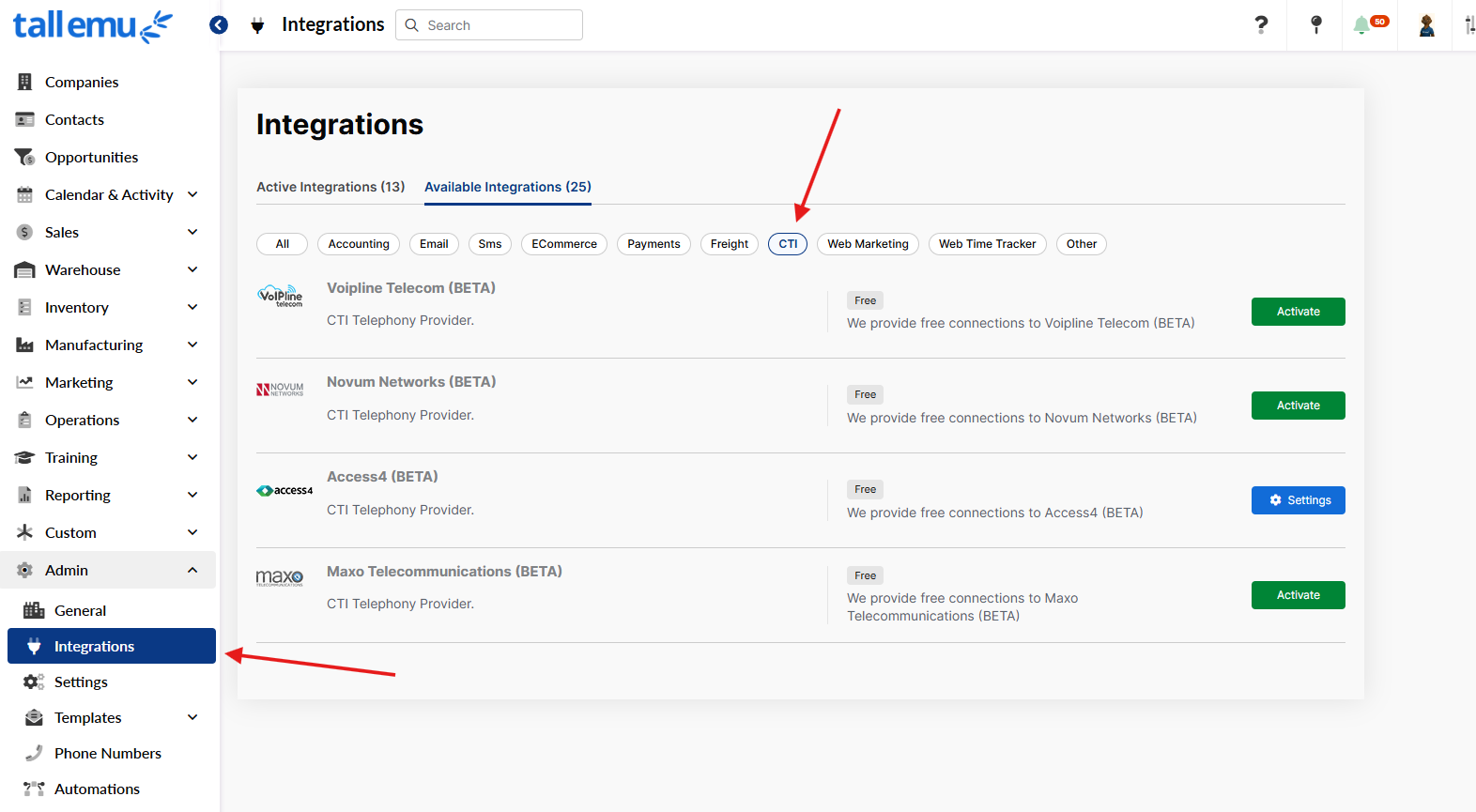
- Enter in the Maxotel API Key. This will download extensions from Maxotel.
- Copy the “Webhook URL” – this needs to be pasted inside Maxotel configuration
You will now need to go into the records for your Users and select whether each of them has a Hot Desk, Permanent or no extension.
- Go to Admin > Settings > Users, Teams & Security and click on Manage Users.

- Open a User record and make a selection in the CTI Extension Binding Mode field.
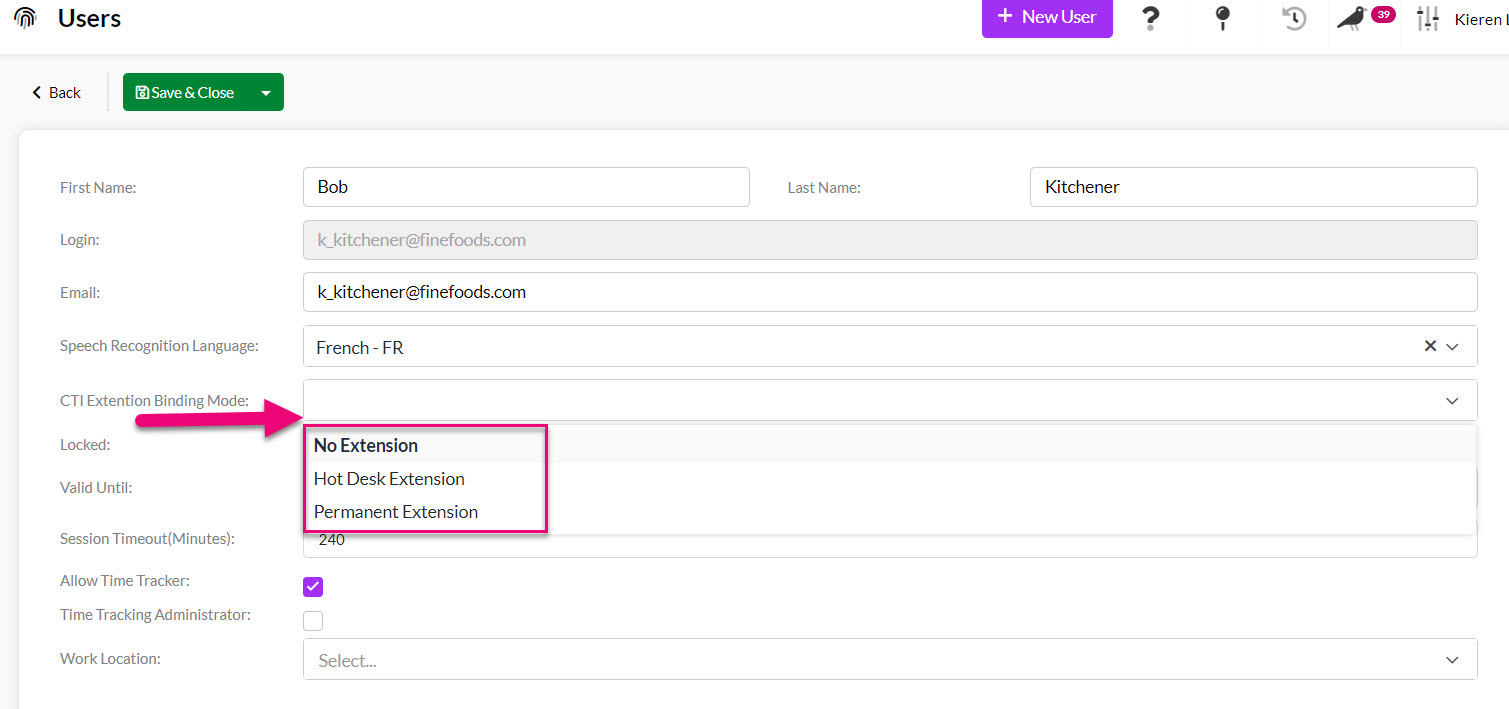
- Once you have made a selection of either Hot Desk Extension or Permanent Extension, a CTI Extension field will show – add the user’s extension number here and click on Save & Close.
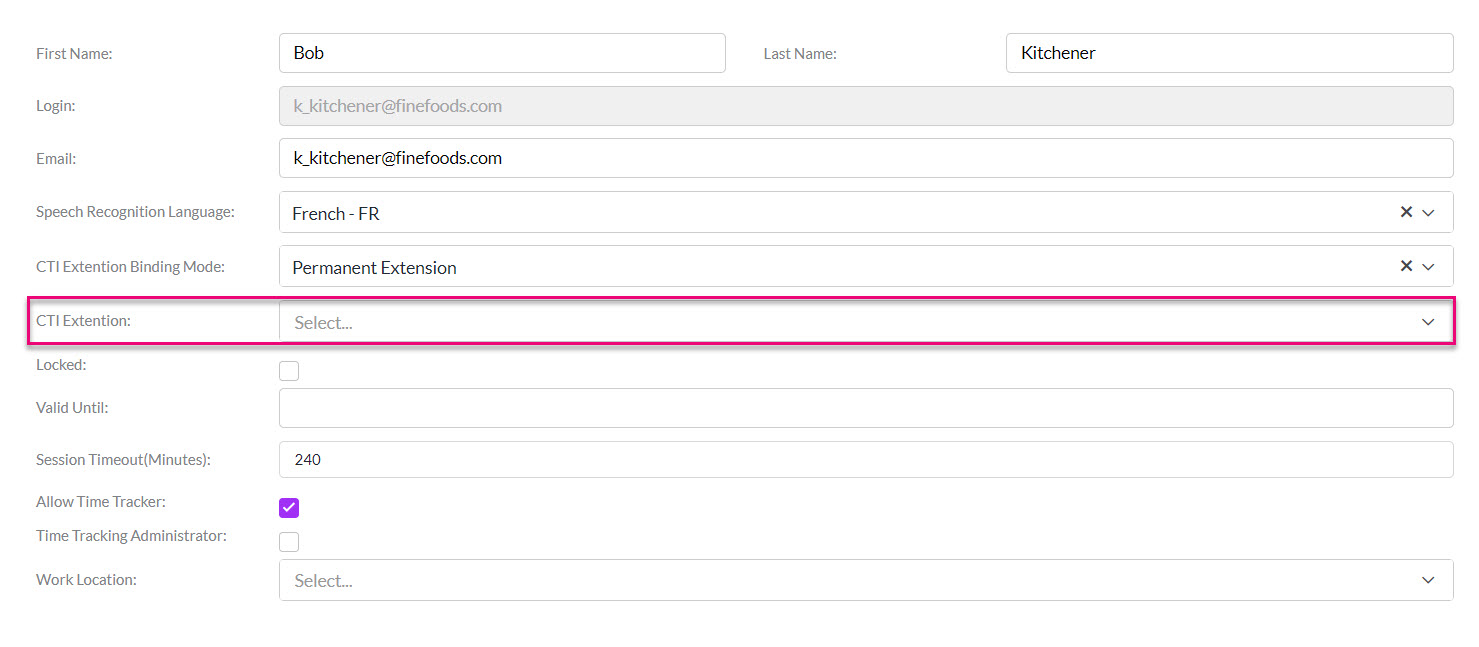
- You will need to repeat this process for each User record.
Note that if you assign a Hot Desk Extension, the User will be required to select this on login:

You can download the desktop app (which is only supported in Windows at the moment) by going to Admin > Integrations – scroll down to find MaxoTel on the list and click Settings, then click on the following link.
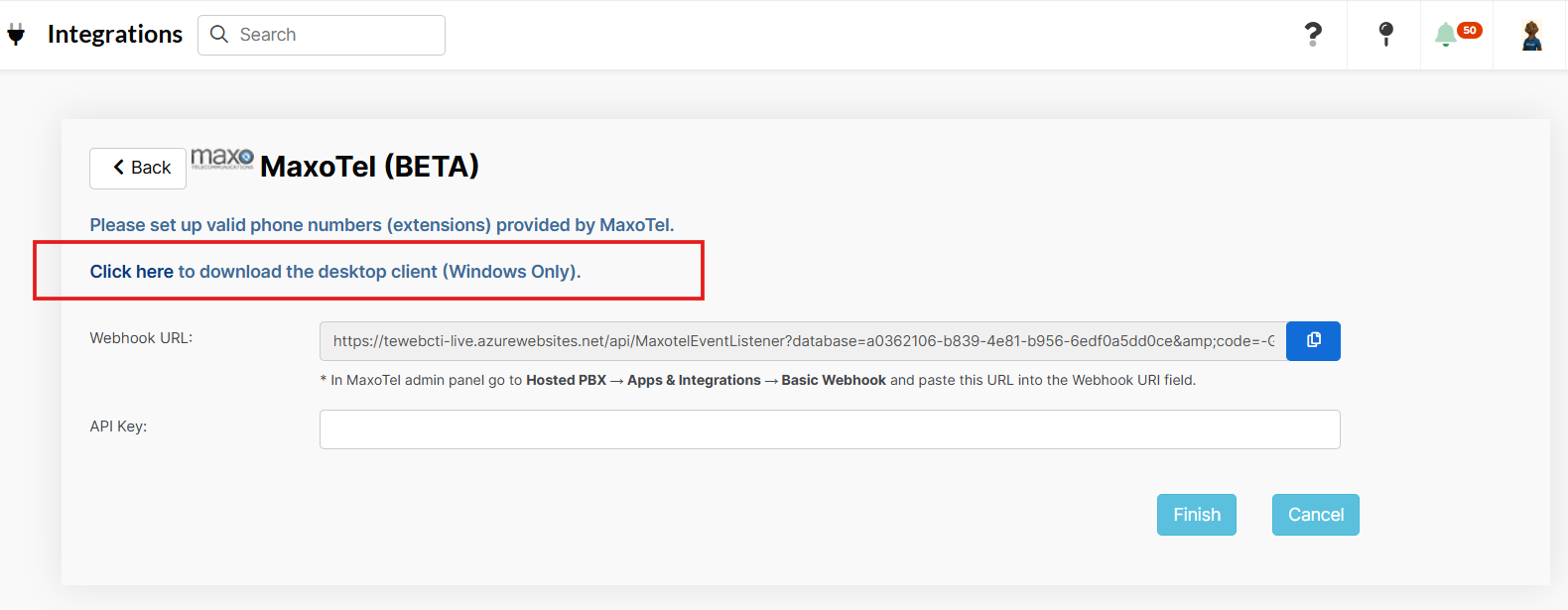
Once the program has been installed, users will need enter their CRM details and click on Login and then select the correct database from the dropdown to link to desktop client to and then click Connect.

Once logged in, users can click on the gear icon to access pop-up preferences.

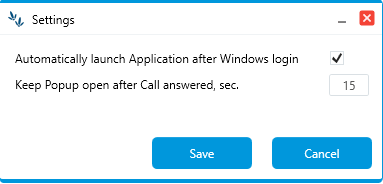
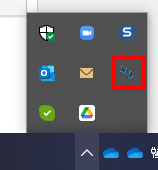
The application can be accessed from the system tray – just right click and select Open. If call pop-ups are not appearing, open the application and check that it is connected and refresh the connection if required.
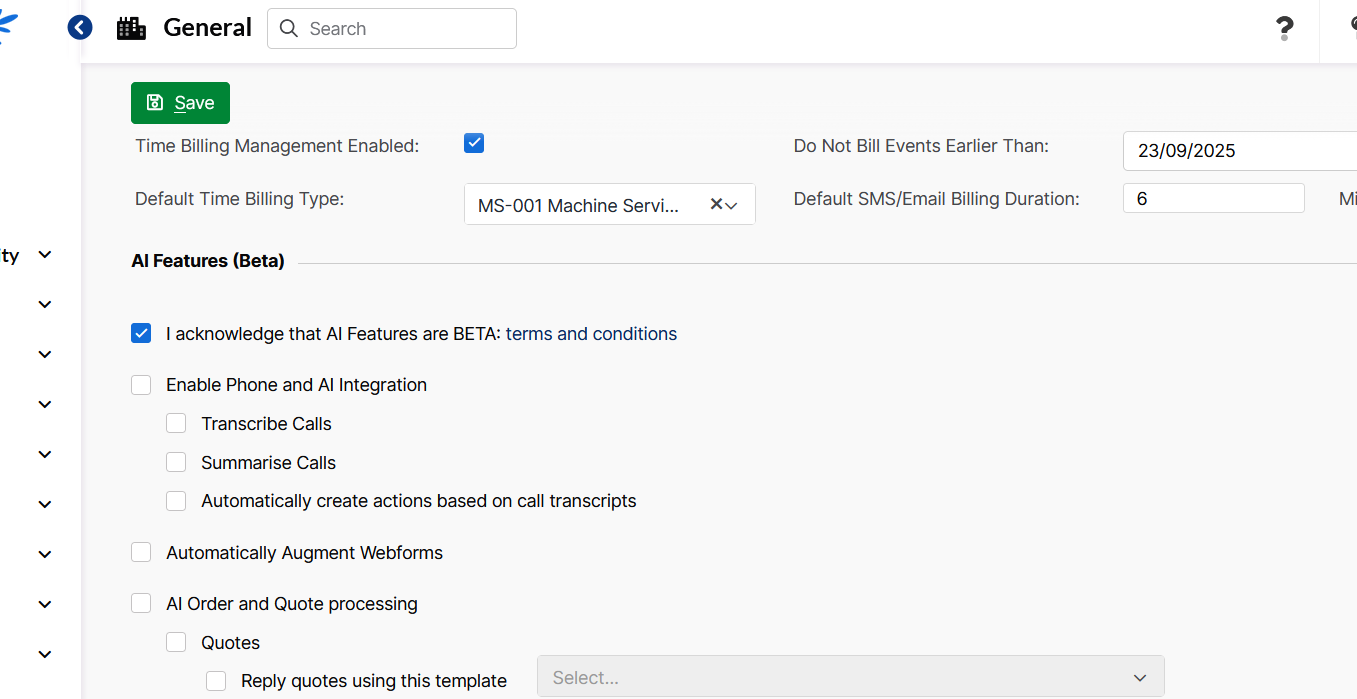
Go to ADMIN-> General:
- Scroll down to AI Features.
- Enable phone, transcribe calls, summarise calls.
- Action creation is optional
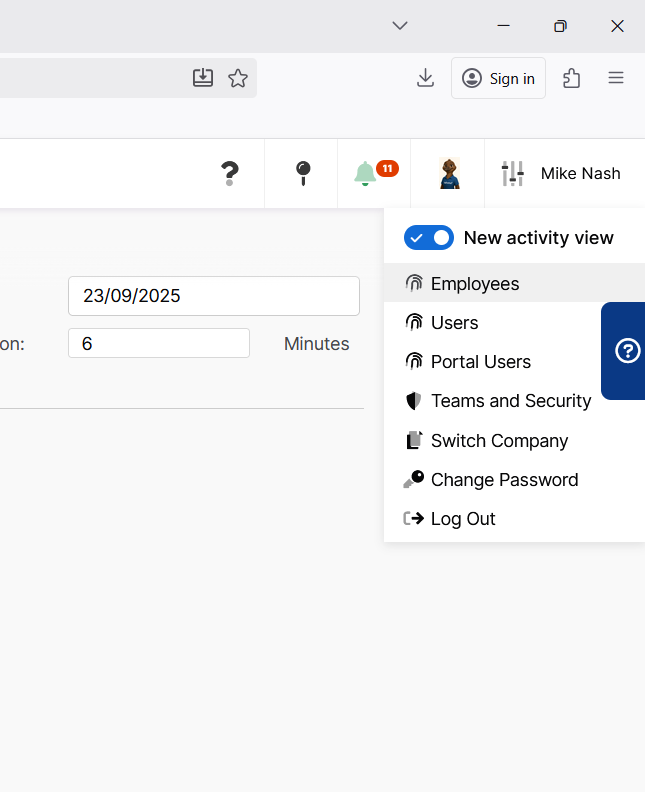
Finally, make sure the “New activity view” is enabled so you see the new-styled call popups: