
Learn about sales
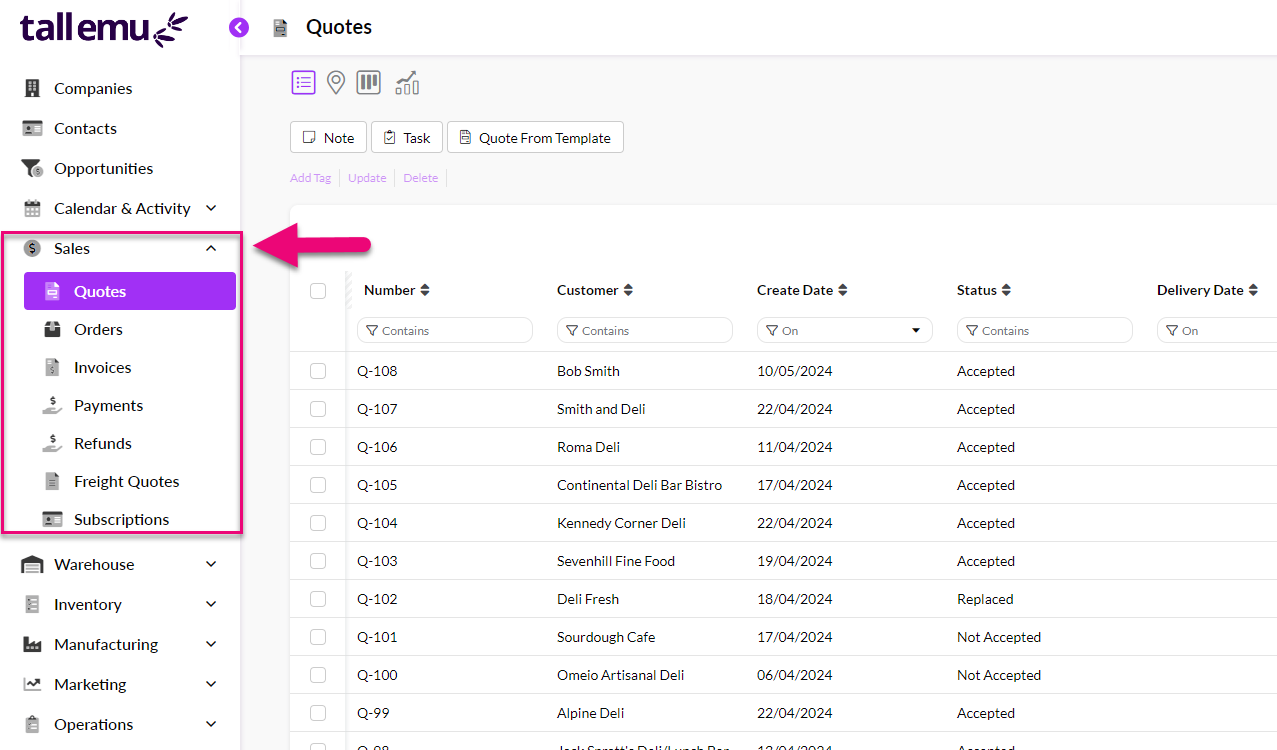
You can access the relevant modules from the Sales area on the toolbar.
Open a sale record
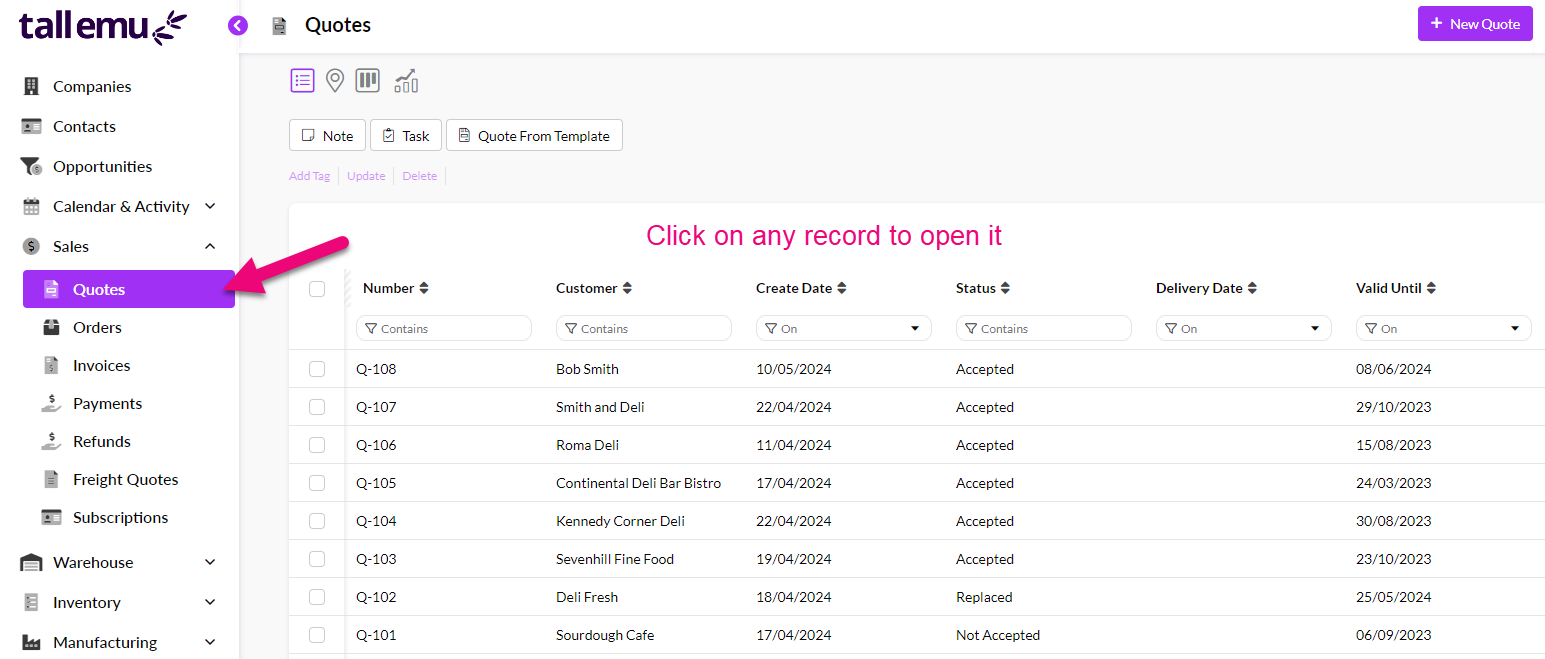
You can access examples of different types from the main menu by clicking on Sales and then choosing either Quotes, Sales Orders or Invoices, which will display a list of sample records.
Simply click on any record to open it.
Learn about sales forms
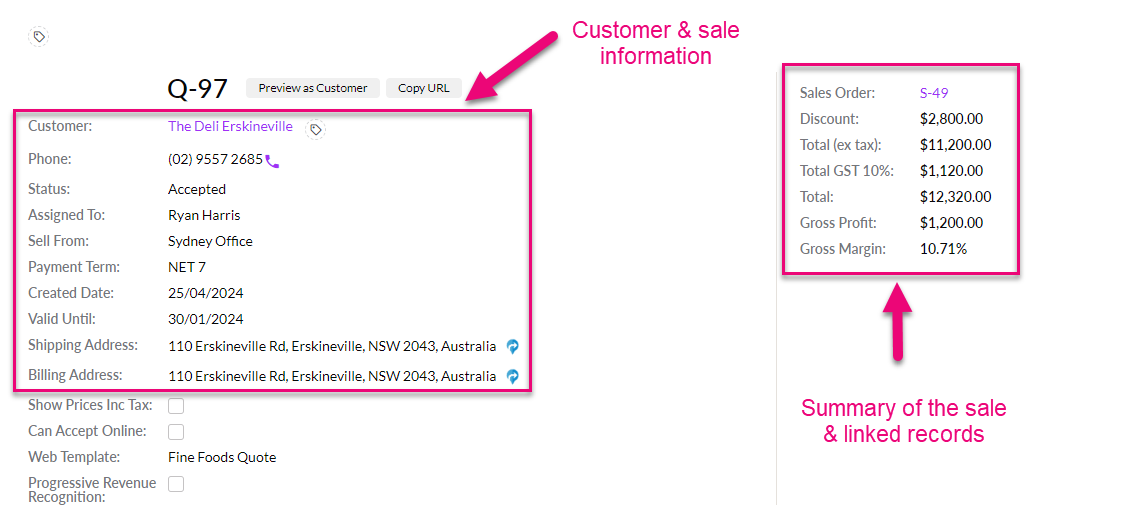
There are 3 sales forms in CRM: Quotes, Sales Orders and Invoices.
Each of the forms is similar in that the top half will display details about the customer and sale.
The bottom half will provide an area for attachments, an action bar and details about the items being sold.
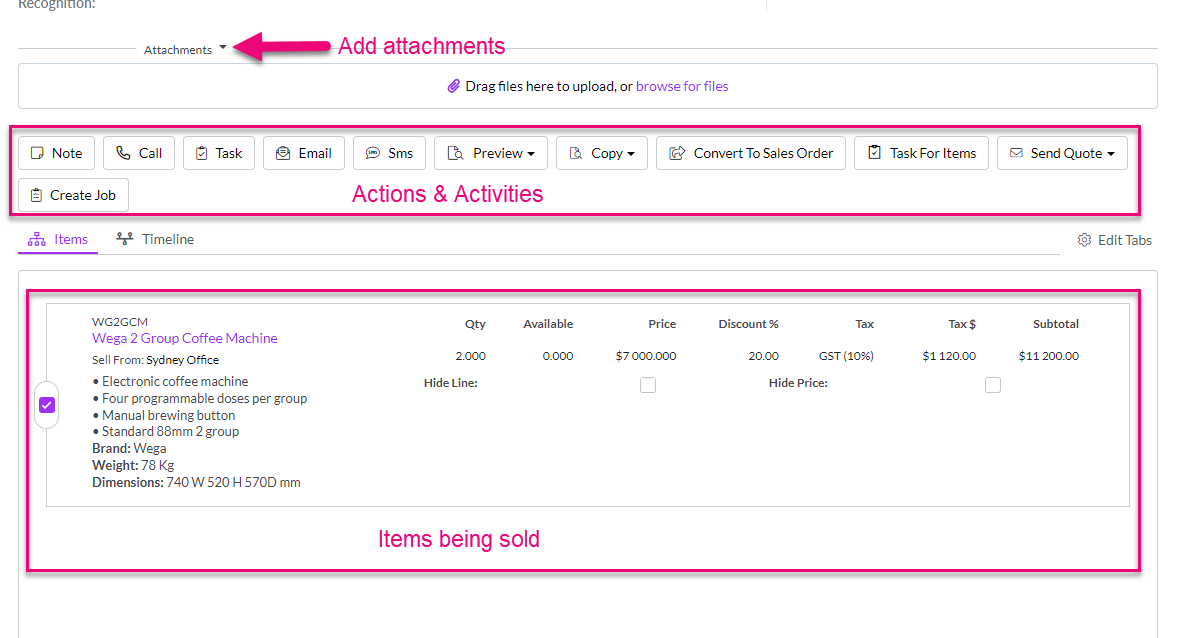
You can easily progress a sale through different phases by using the button on the activity bar.
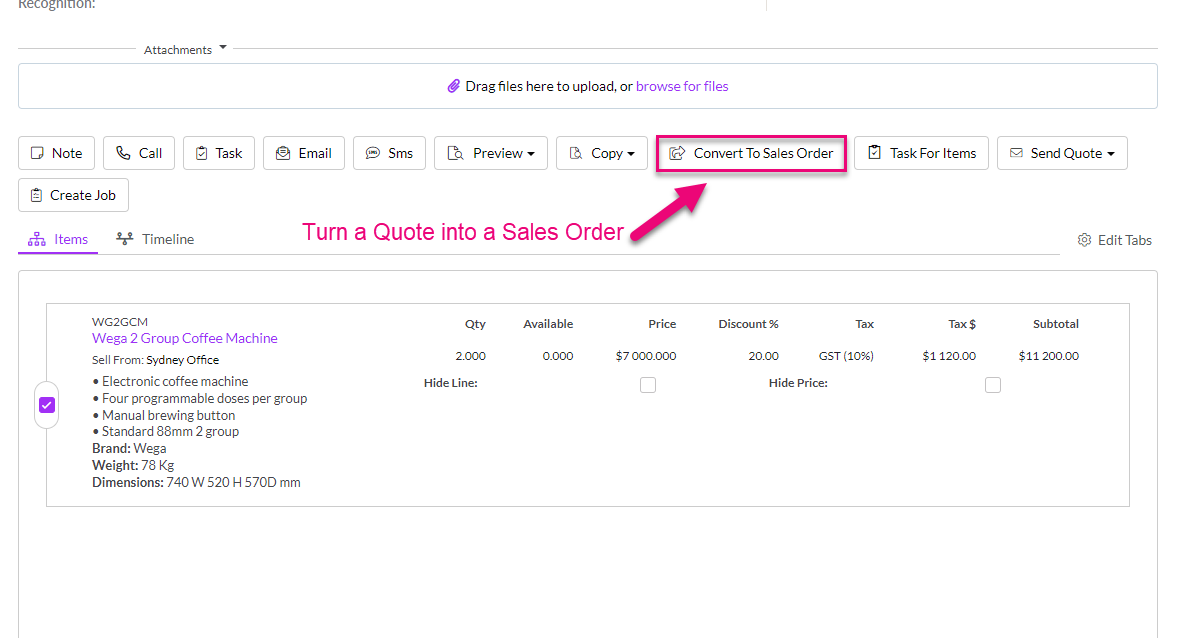
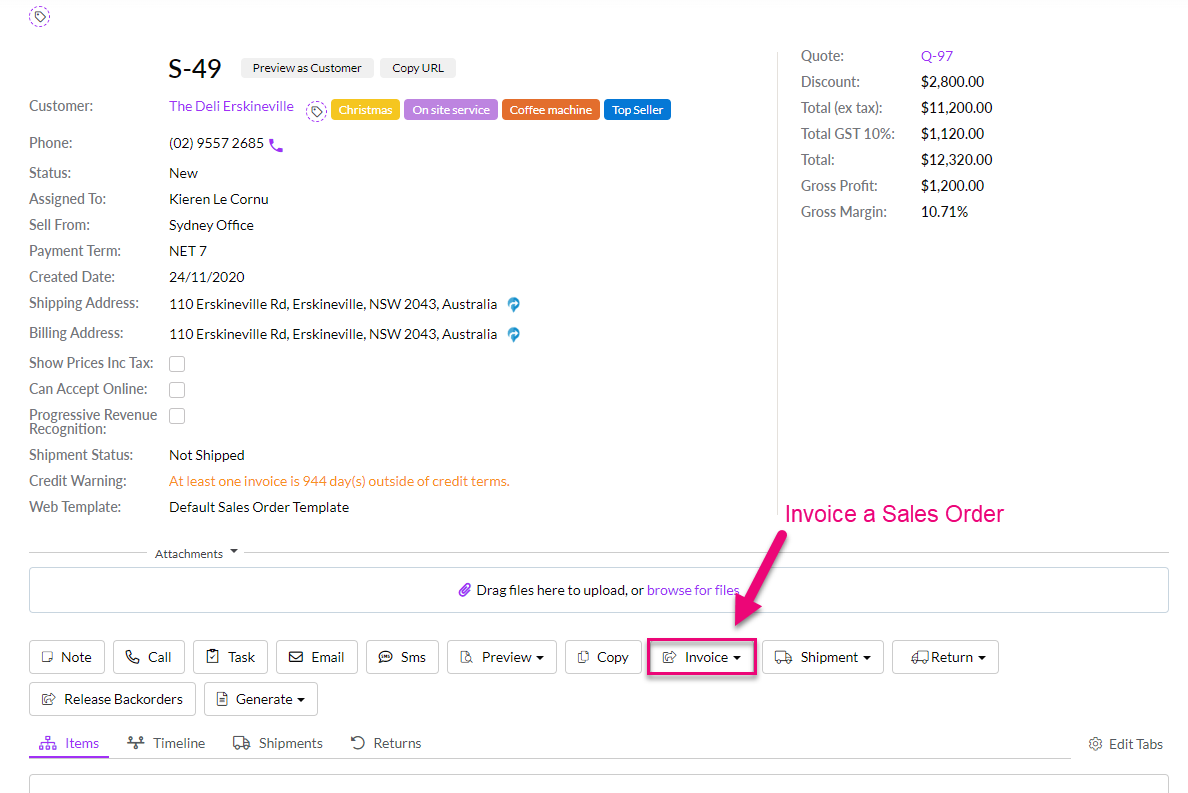
In some cases, you can automate the creation of Sales Orders and Invoices, based on certain events like when a Quote is accepted, or an item is shipped to a customer.
Create a Quote for yourself
There are numerous ways to create Quotes in CRM; in this exercise we’ll use the simple method of creating one from the area.
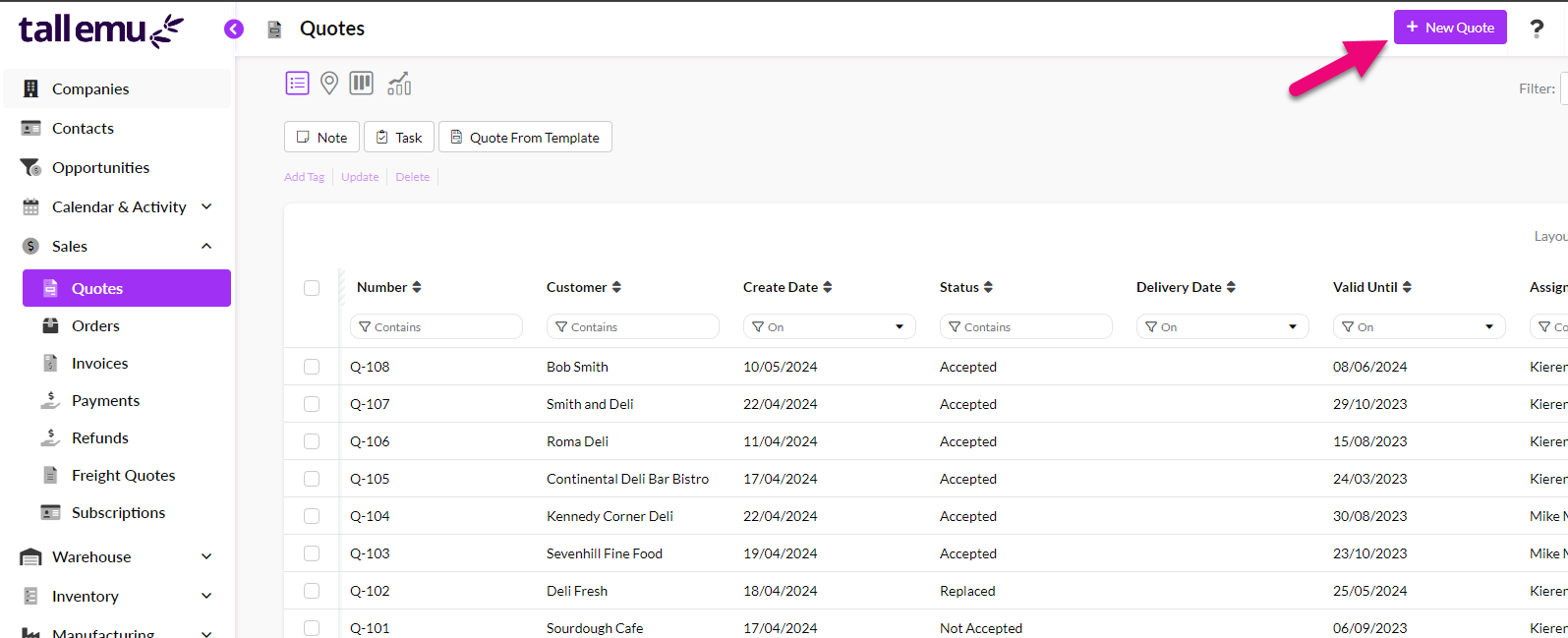
When the form opens, start typing your name into the Send To box, then click on the entry that will display on the dropdown list when no match is found.
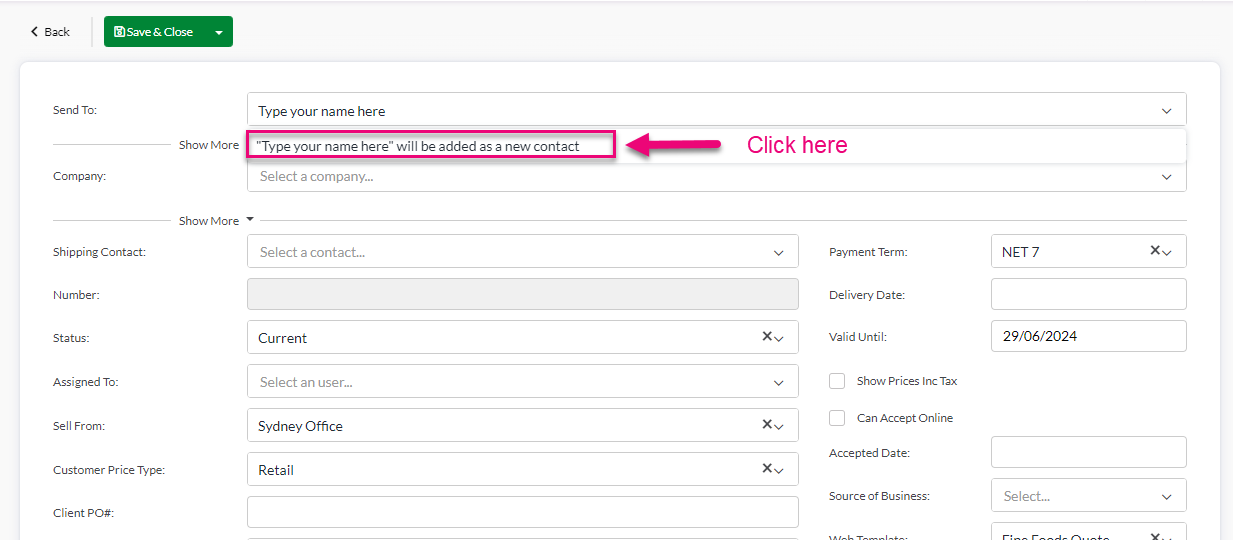
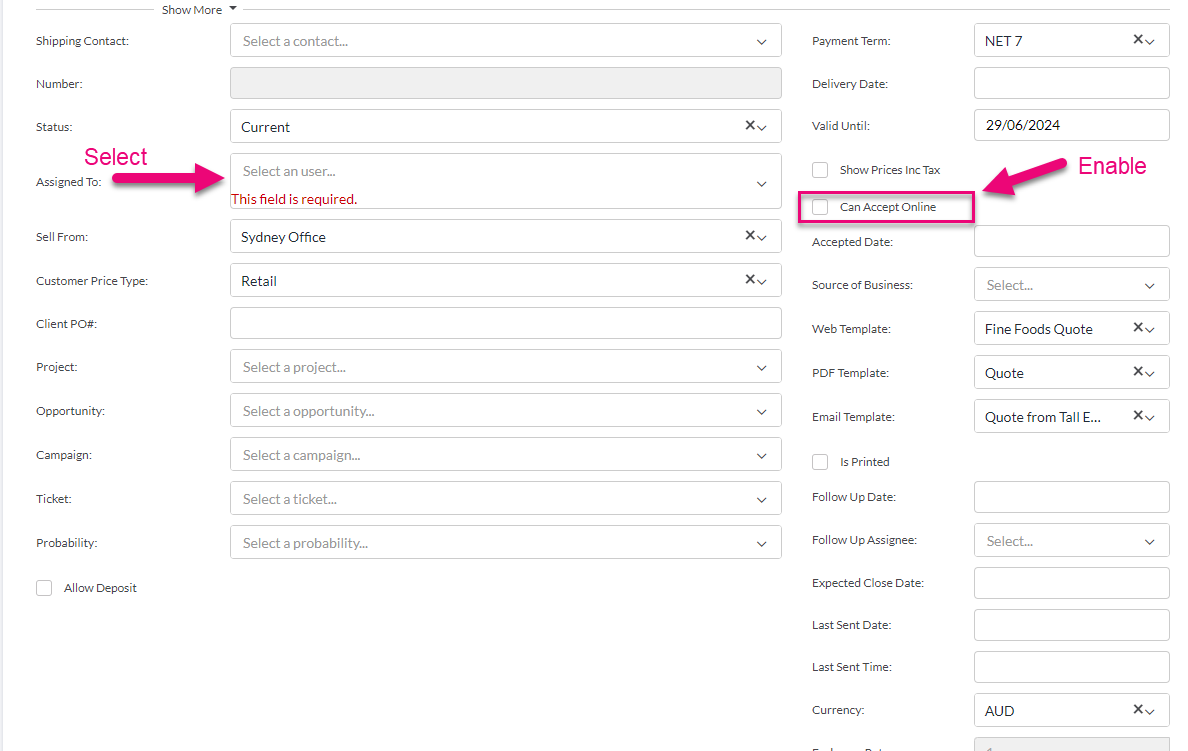
Scroll down and select options in the details area. The only required field here is Assigned To and Can Accept Online, so you can just make these selections and move on if you don’t want to explore the other fields.
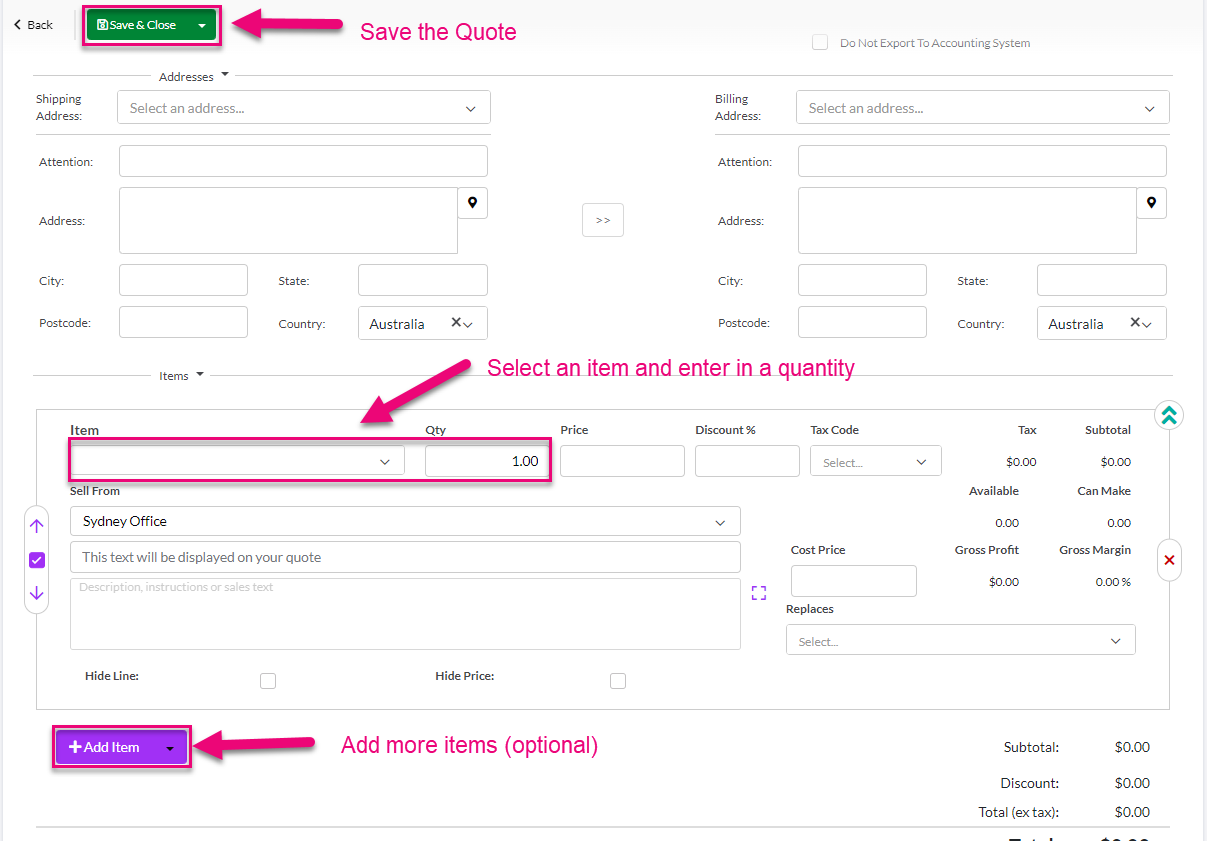
Scroll down and add an item to the quote, then enter in a quantity. You can add as many items as you want. When you’re done, click on Save & Close.
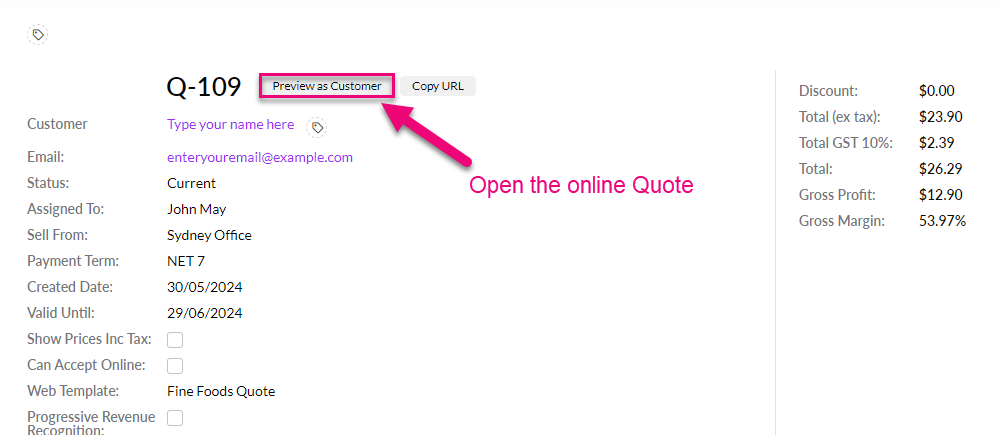
On the saved record, click on the Preview as Customer button at the top – this opens the online version of the Quote.
You can then fill in the details to accept the Quote.

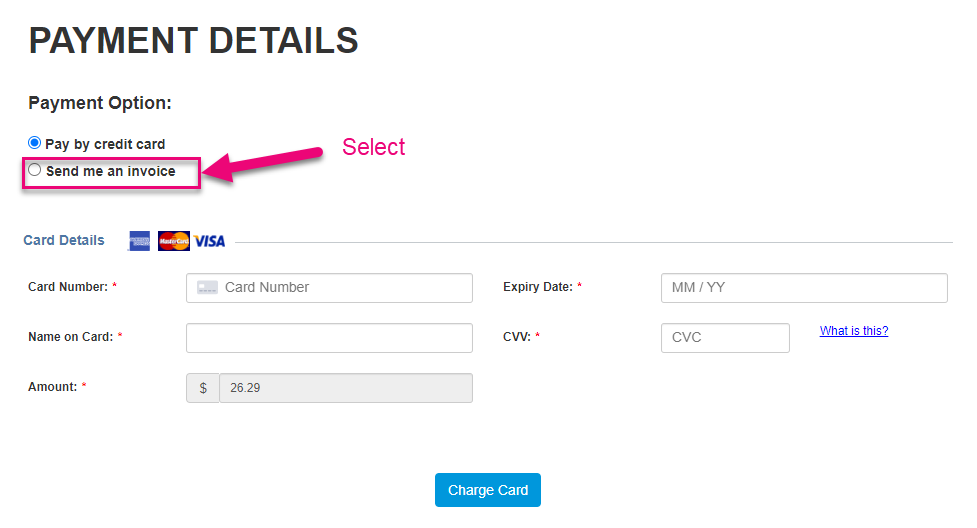
You will then be taken to a payment screen where you can select “Send me an Invoice”.
Come back into the Quote in CRM and refresh it to see:
- The Status has been updated to Accepted.
- Your PO number has been added.
- CRM has automatically created a Sales Order for you.
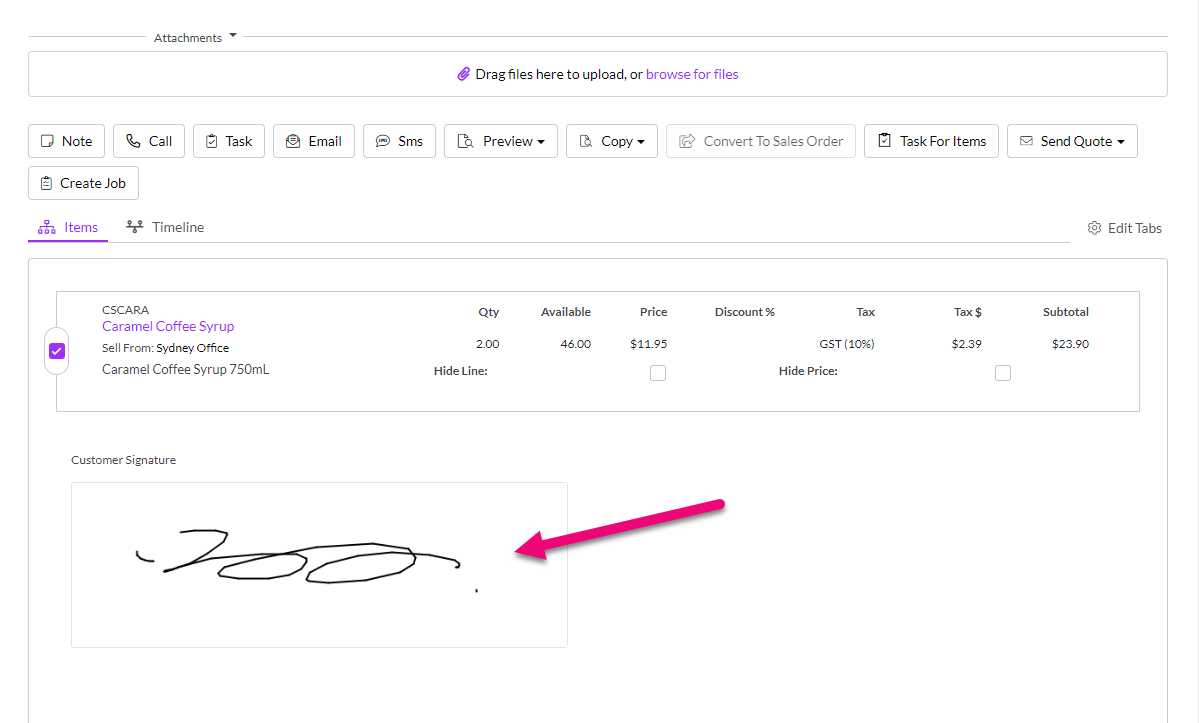
- Your signature has been added to the record.
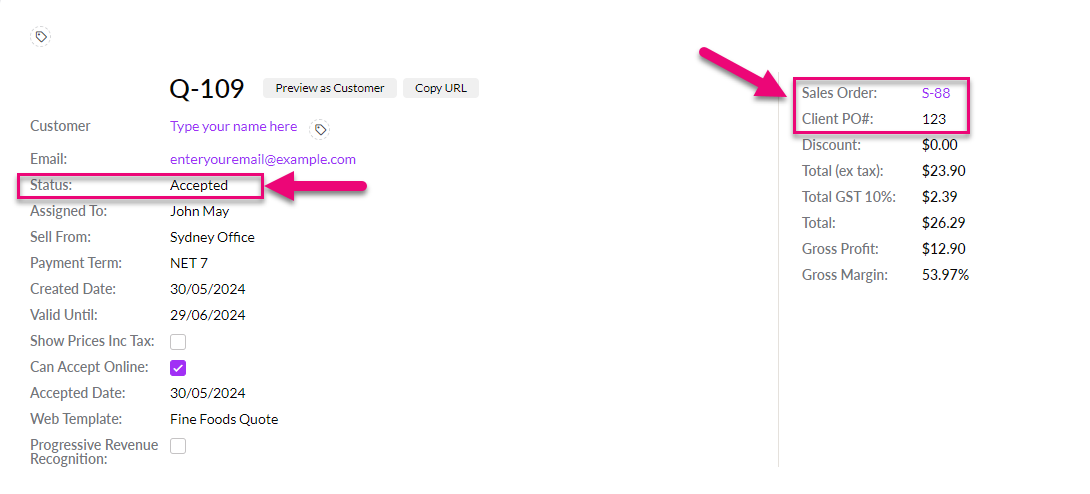
If you want to continue with the sales process, you can click on the link to the Sales Order in the top right-hand corner of the record.
View a Dashboard
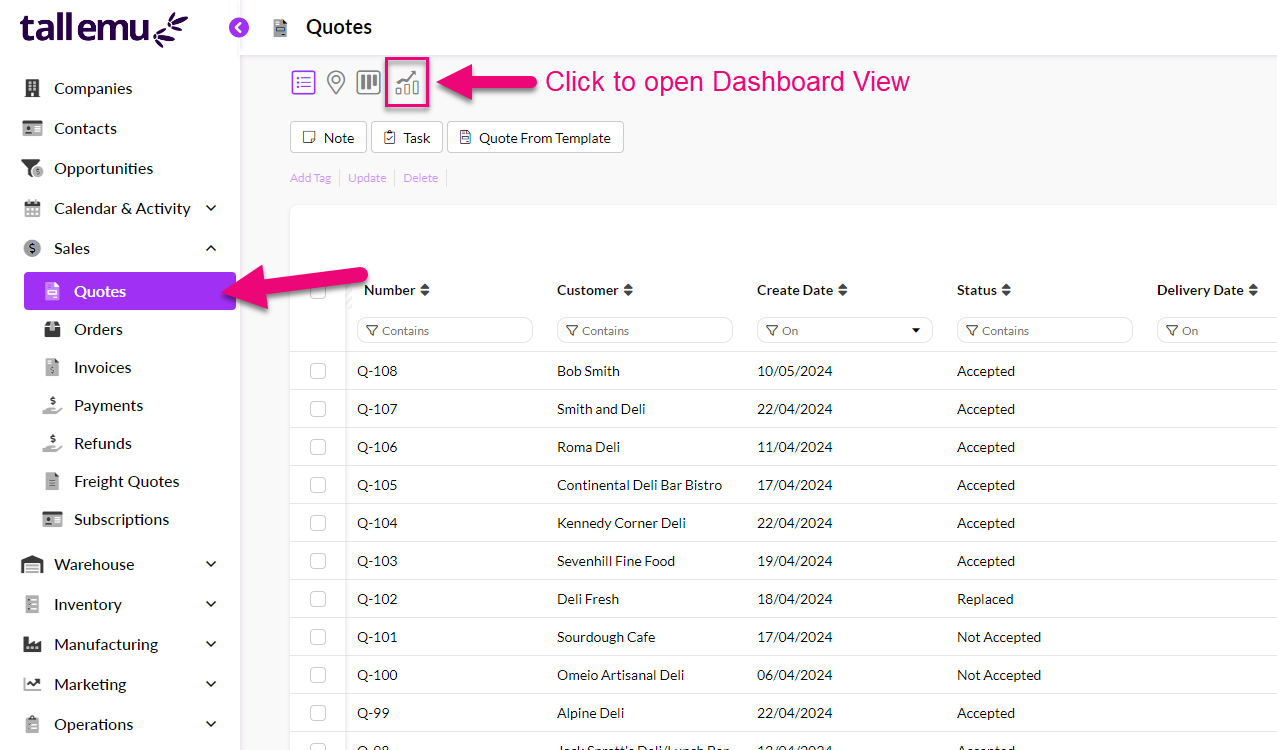
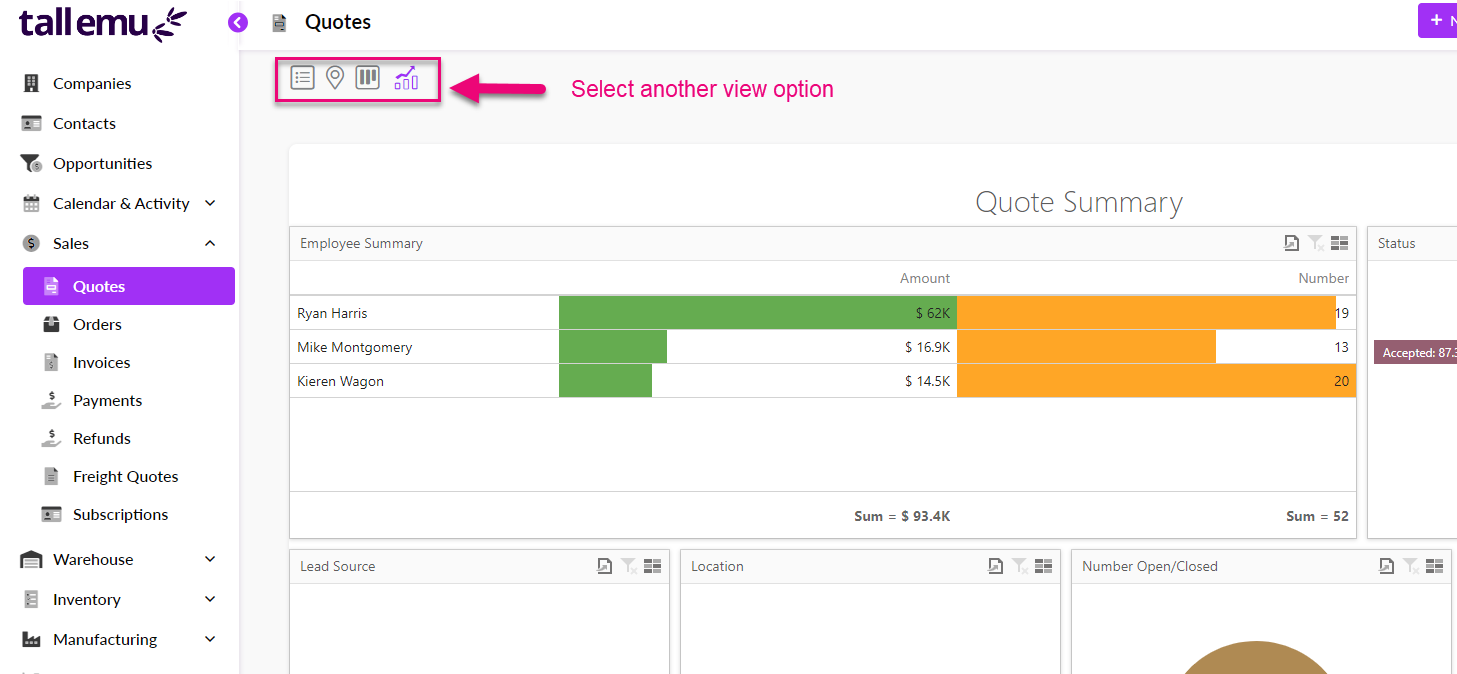
Choose Quotes from the menu and then click on the graph icon at the top of the page.
The Dashboard View will then be displayed where you can choose from a range of different Dashboards to display, change the reporting period for the data or click on any of the objects to drill down further into the data.
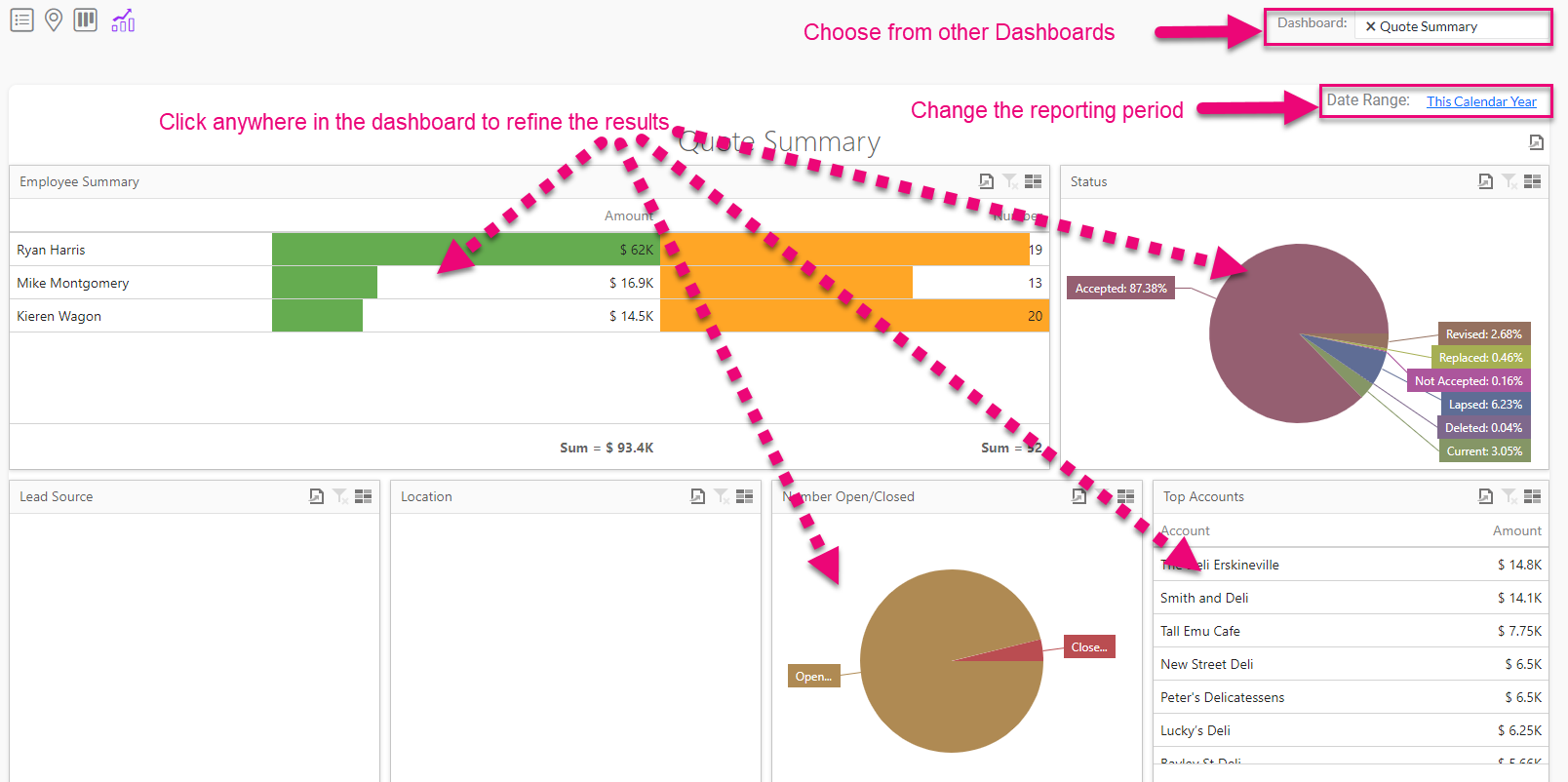
To exit Dashboard View, just select another choose one of the other view selectors from the top of the screen – List, Kanban, Map view.
Buy an item from inventory online
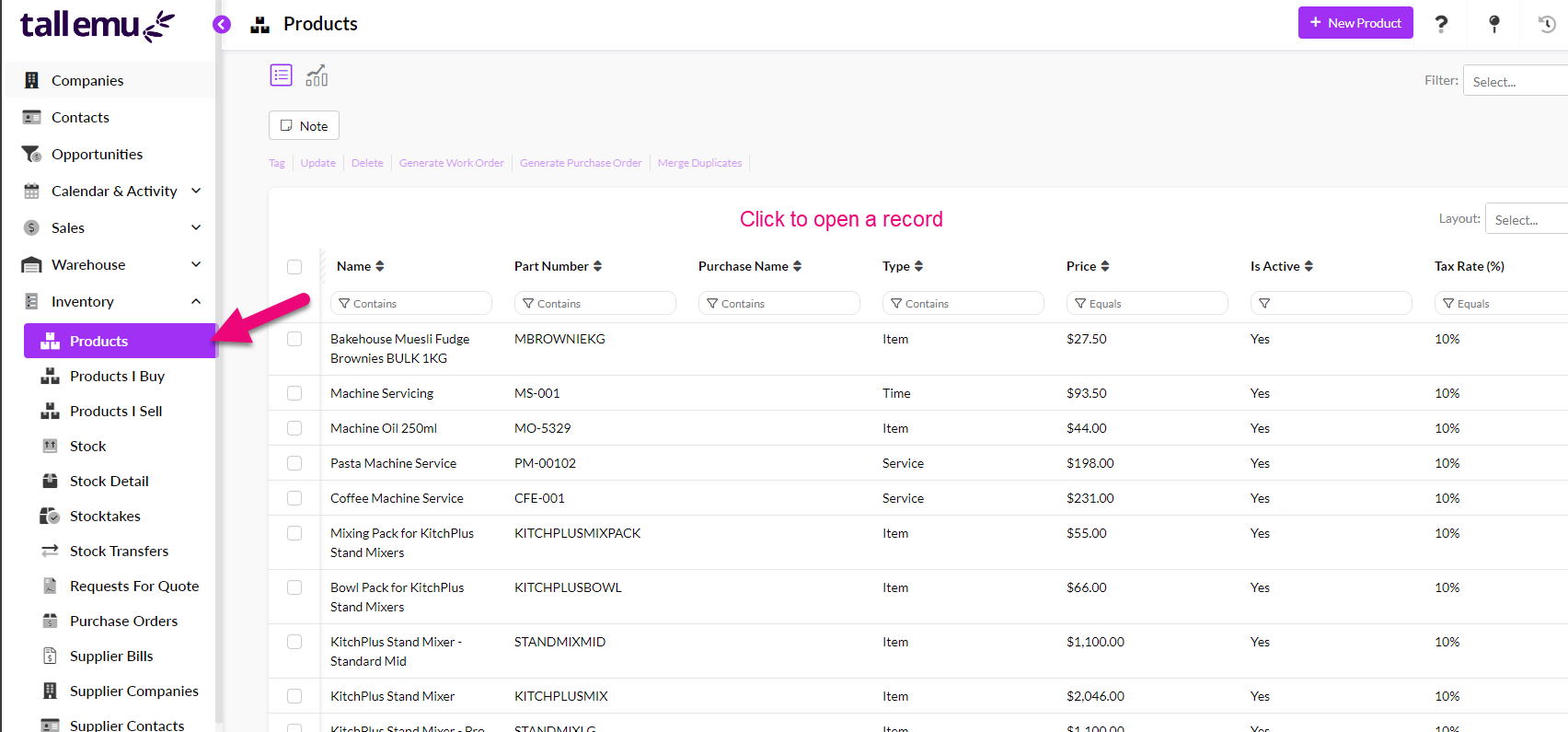
Go to Inventory > Products and then click to open any Product record.
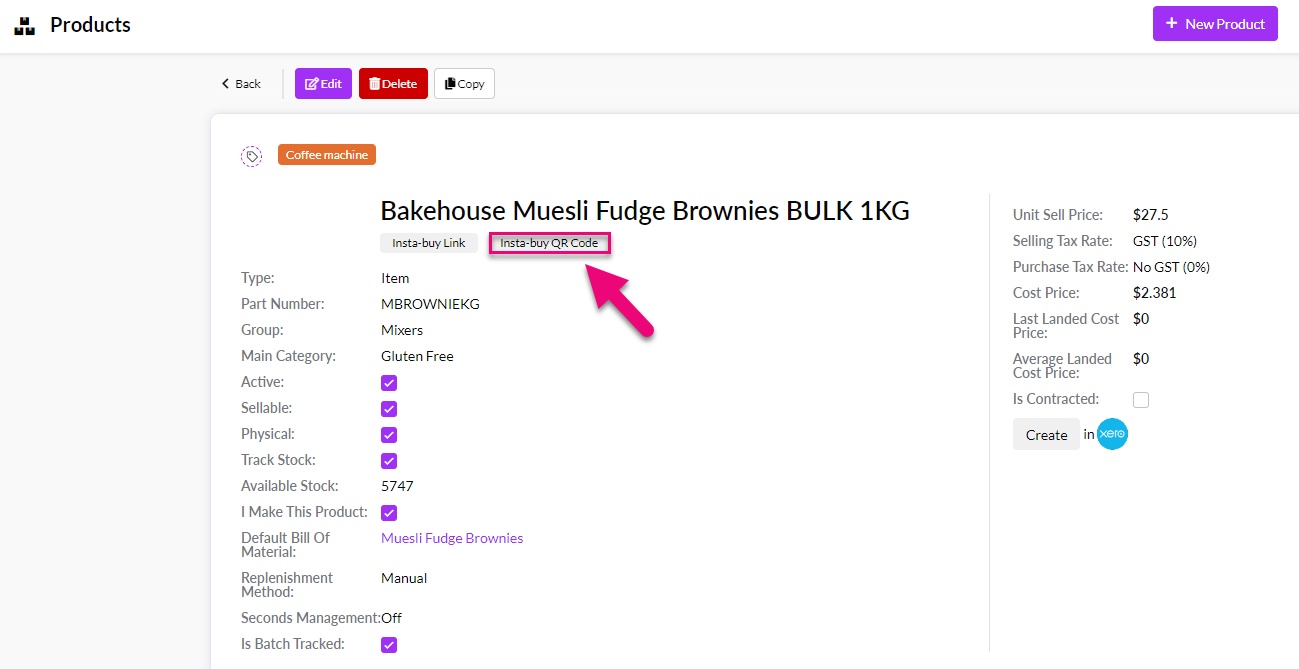
At the top of the record, click on the Insta-buy QR code button.
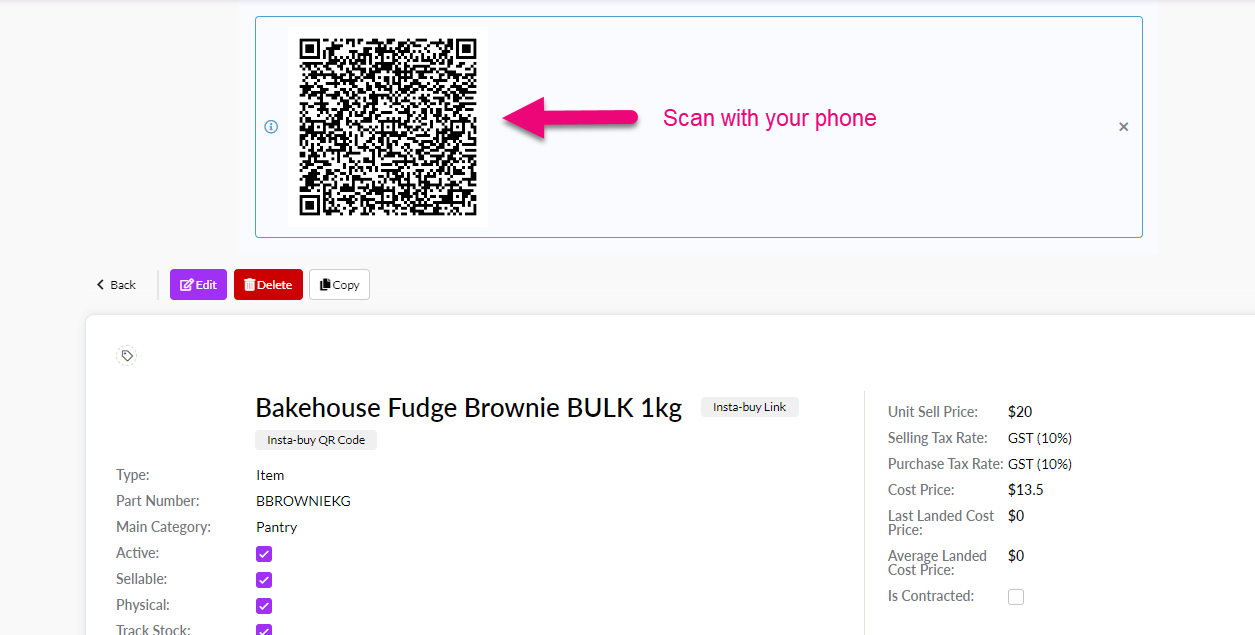
Scan the QR code with your phone.
Fill in your details and select the Invoice Me option, then press Buy Now.
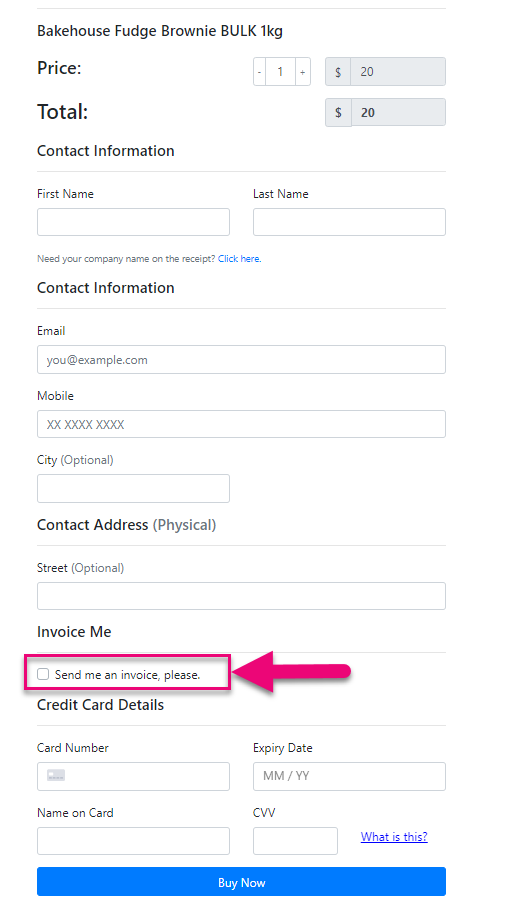
You’ve just purchased a product online and can now go into Sales > Sales Orders and locate your order.