
Learn about customers
In CRM, a customer can be either a Company or a Contact.
There are a number of types of relationships you can have between these records:
- You can have multiple Contacts linked to a Company.
- Establish third-party billing and/or parent-child relationships between Companies.
- Customise different types of Relationships between Contacts and Companies, Contacts and Contacts and Companies and Companies.
Open a customer record
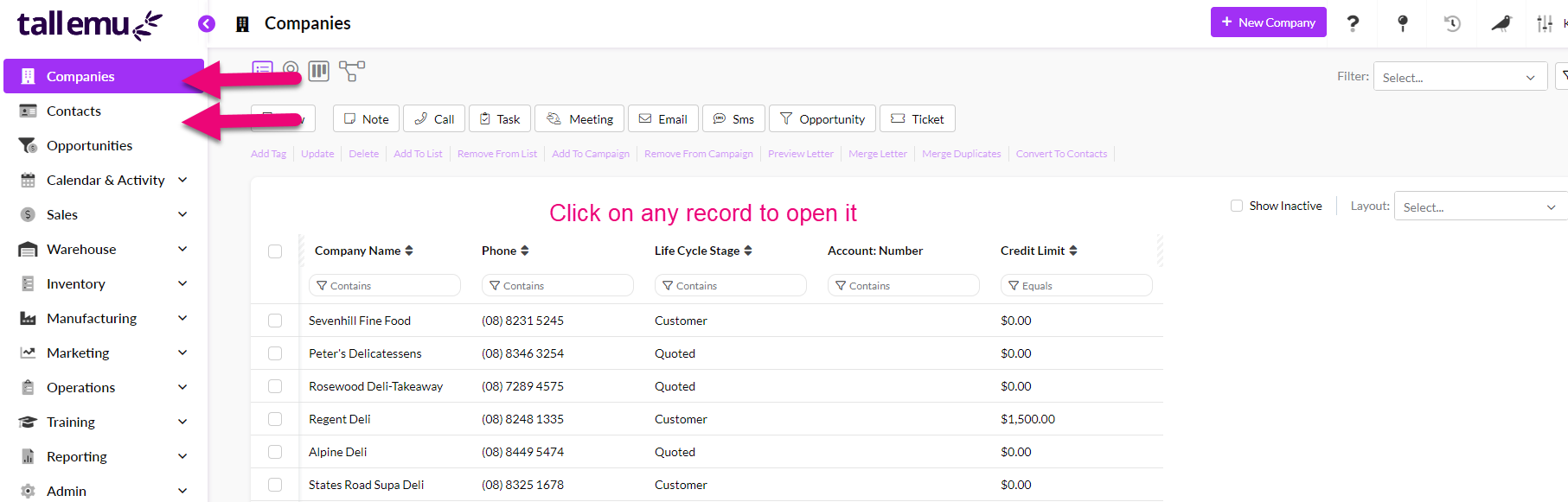
You can access examples of both from the main menu by clicking on Companies or Contacts, which will display a list of sample records.
Simply click on any record to open it.
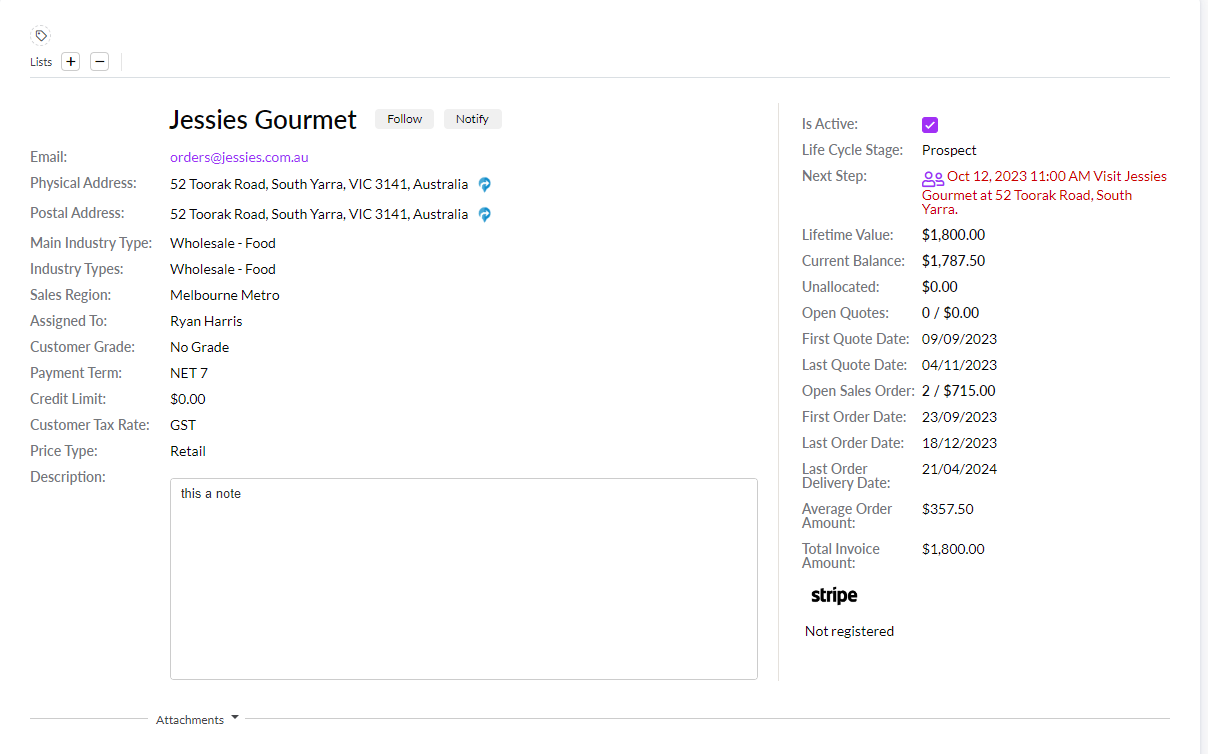
Learn about the customer record
The top half of the record will display key information.
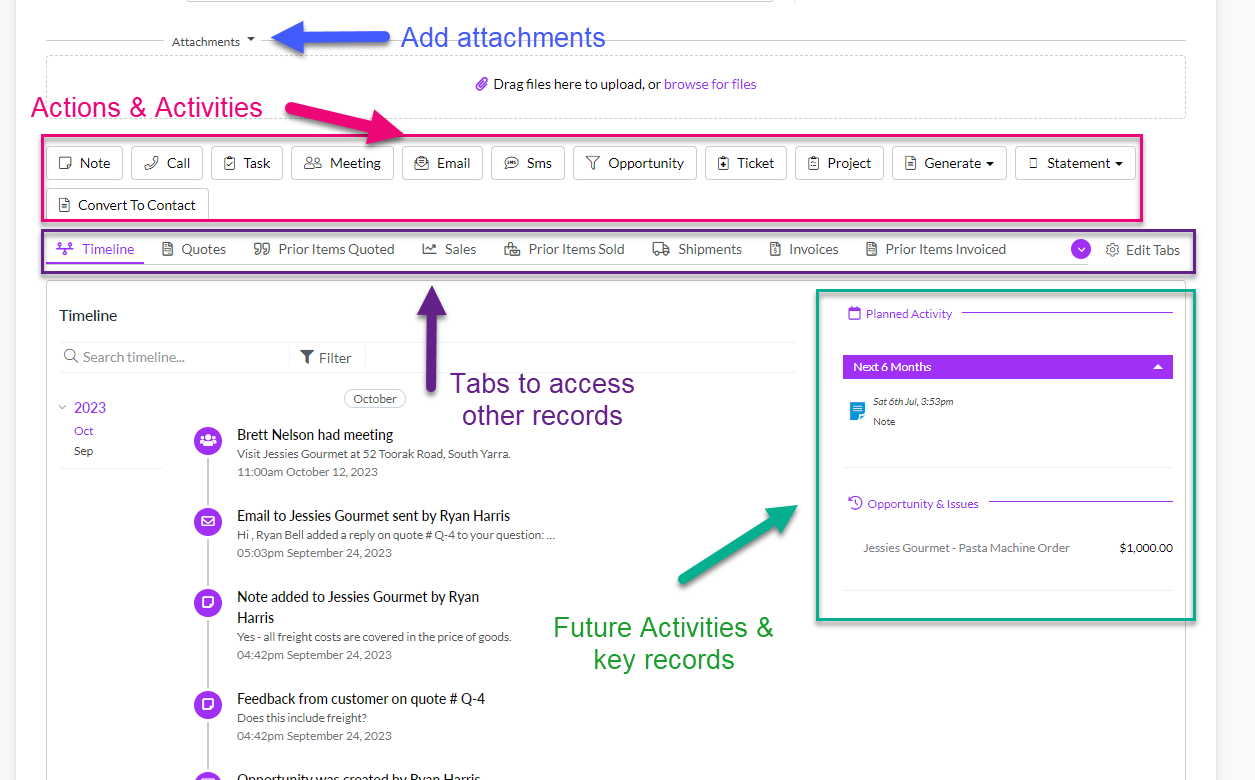
Scroll down and you will see an area where attachments can be added, a Timeline of activities, upcoming Activities and various tabs that provide access to the customers related records all over CRM.
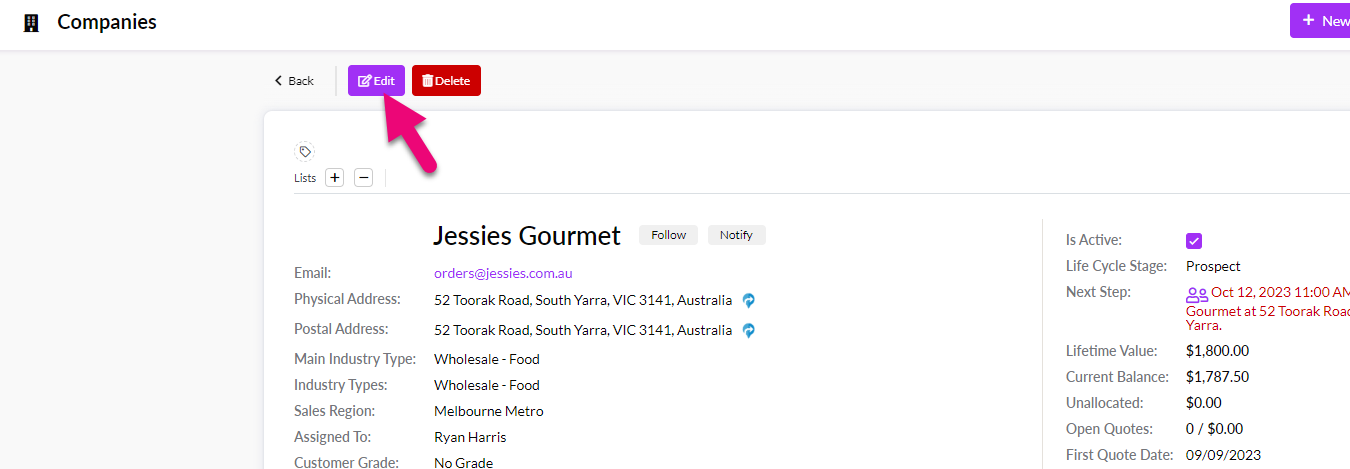
To modify the record, click on Edit at the top.
Once you have made your changes, click on Save & Close.

View customer records on a map
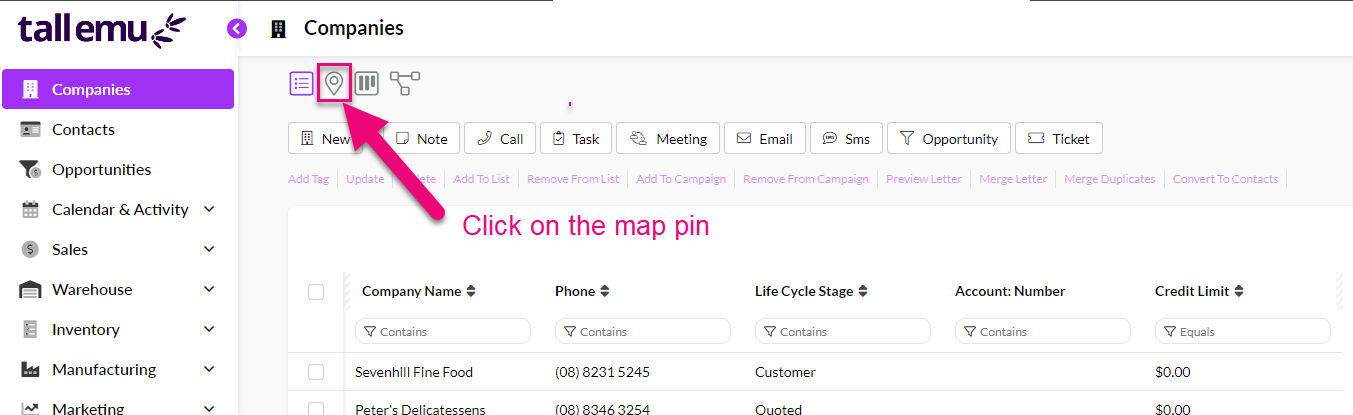
In either area, click on the map pin icon at the top of the screen.
You will then be taken to Map View – use the toolbar buttons to zoom in or out and click on any of the hotspots to see more detail about customers in the area.
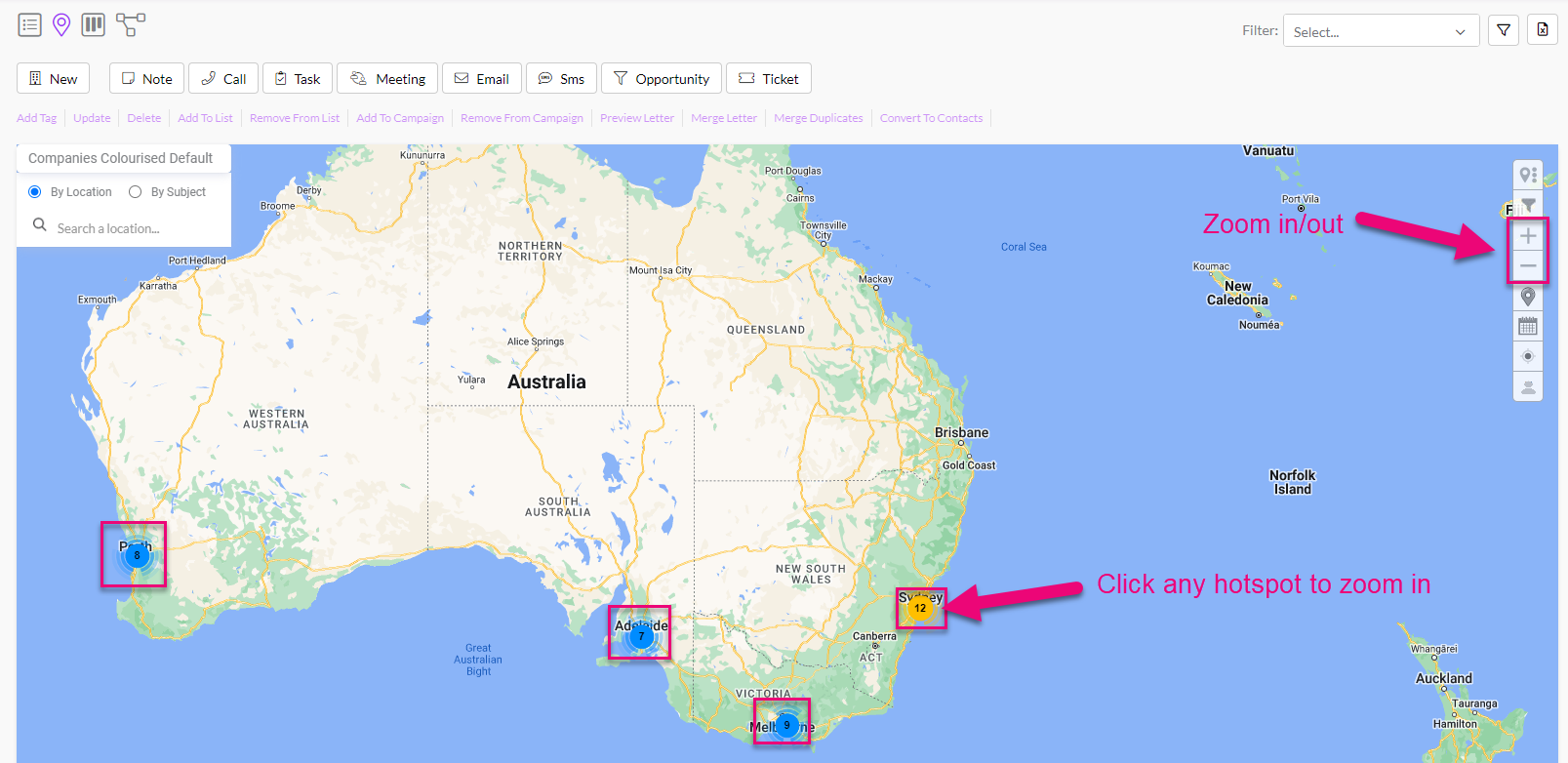
You can then click on any map pin to reveal more information about the customer at that location.

To exit Map View, choose one of the other view selectors from the top of the screen – List, Kanban, Merge Duplicates view.

Learn how to customise your customer records
On the main menu, go to Admin > Settings > Customers – this is a list of fields that you can customise with your own options and terminology.
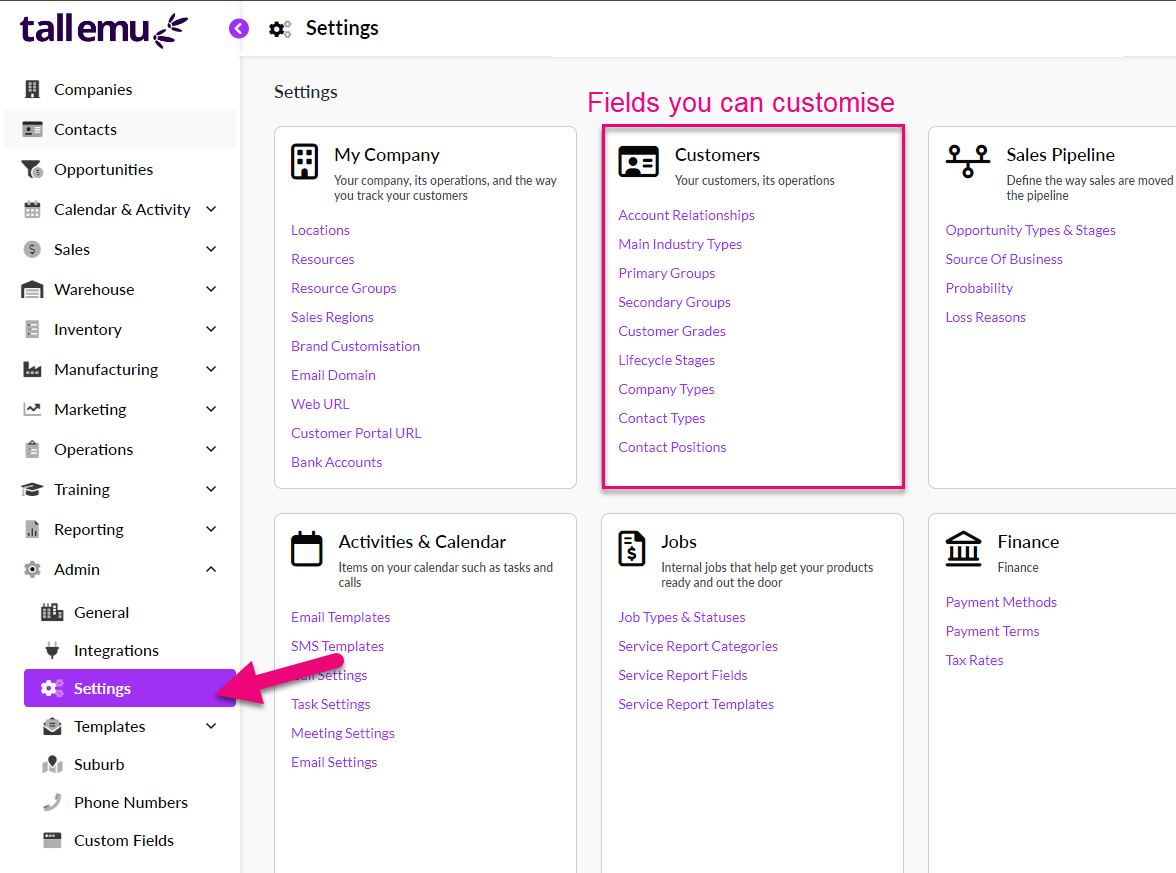
Click on any field name to open the customisation box, then use the Delete, Edit and Add buttons to customise the list.
To exit the customisation box, just click on the “X” in the top right corner.
