
Step 2
Invite other people to the database
You can invite as many people as you want to the database. You can also skip this step if it’s not relevant to you.
In CRM, the level of access that Users have is determined by which Team they belong to. You can configure as many different Teams as you want, each with different levels of permission.
Create the User
To invite another person to the database:
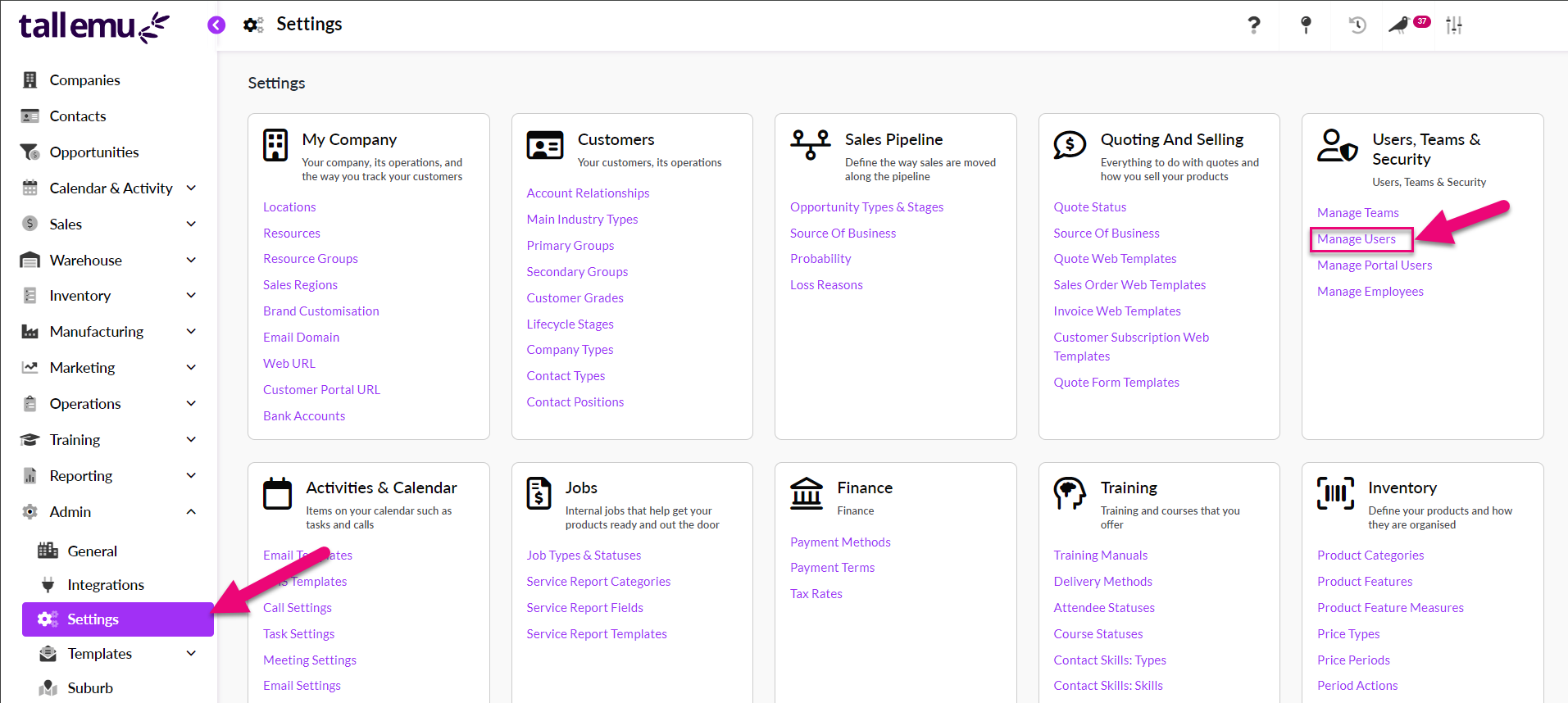
- Go to Admin > Settings > Users, Teams & Security and click on Manage Users.
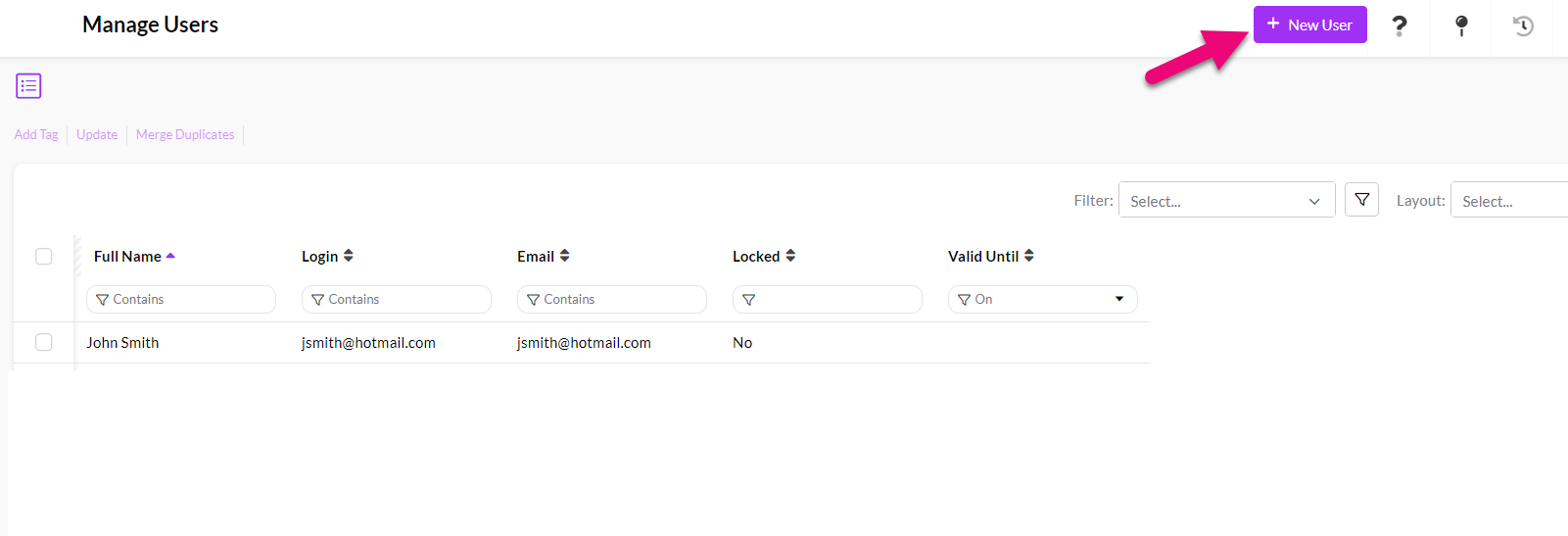
- You will be taken to the User management area of CRM – just click on New User.
- A new User form will be displayed – enter in the basic details for the person you are inviting: First Name, Last Name and Email, then click on Save & Close.

Give the User permissions
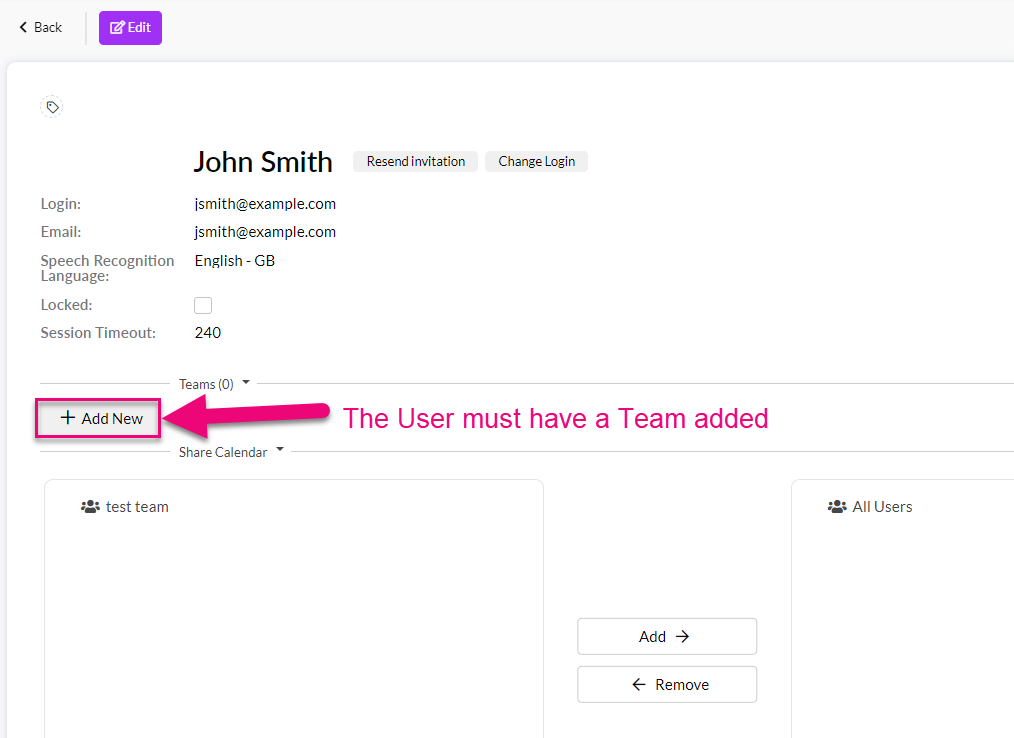
- The User has now been created and you need to give them permission to use CRM by assigning them to a Team – click on the Add New button to reveal a list of Teams to select from.
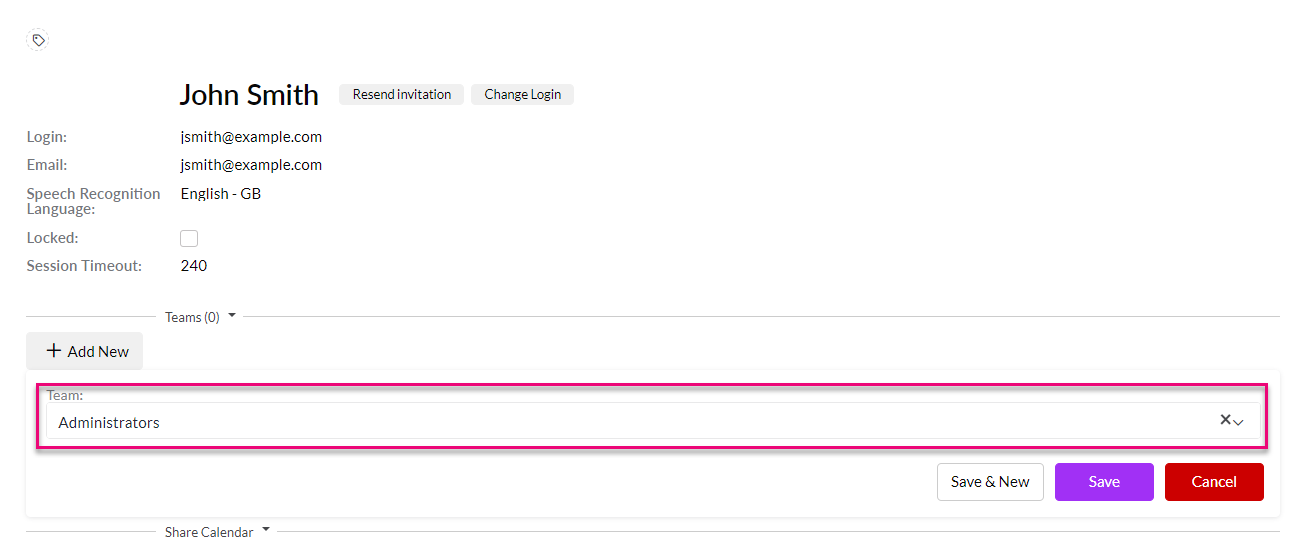
- To give the User full administrator privileges, choose Administrators from the list.
- We’ve provided other Team options that you can select from if desired; just note that these will give people full access to the trial database.
Invite the User
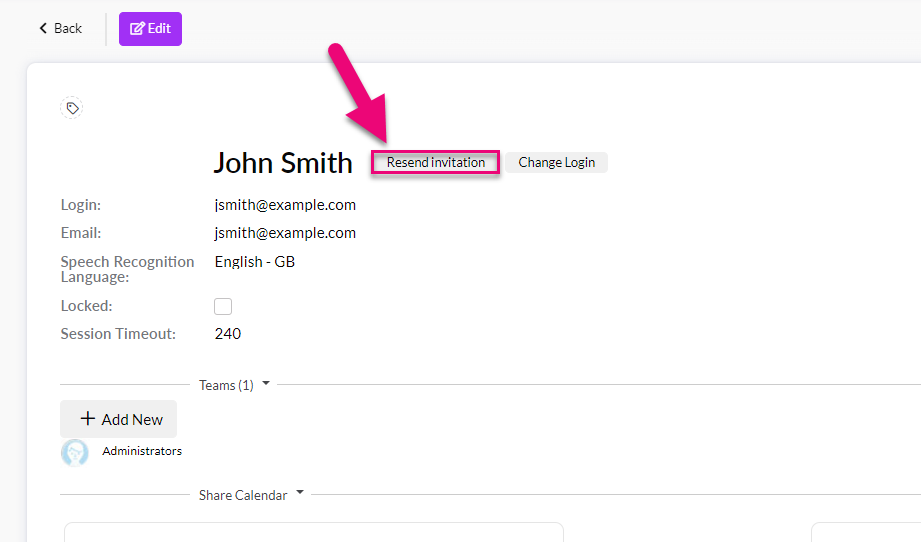
- Simply click on the Resend invitation button – this sends an email to the User with instructions on how to log in.
Resetting your password
You can click here to reset it.
To learn more about the topics on this page, see: